
Key Takeaways
- Open the pipeline editor from the Deals tab pipeline view by clicking the pencil icon next to the pipeline dropdown.
- Confirm which pipeline needs the new milestone and where it belongs between existing stages before editing.
- Open your pipeline view, pick the active or secondary pipeline to modify, click + between stages, and configure stage settings.
- Check your Deals pipeline board to confirm the new stage column appears in order with its probability and rotting rules.
You can insert a new stage anywhere in a Pipedrive pipeline and customize its name, win probability, and rotting settings as your sales process evolves. Sales managers update stages directly from the deals pipeline view so forecasting and deal tracking reflect real milestones.
For plan limits and team seat pricing behind this workflow, read our Pipedrive review or connect Pipedrive to AI agents in Pipedrive API and MCP.
Key steps
What do you need before starting in Pipedrive?
Pipedrive requires the following workspace setup before you begin:
- A Pipedrive account with permission to edit pipelines in the Deals tab
- An existing pipeline with clear before-and-after stages for the new milestone
- Agreed stage naming, win probability percentage, and rotting thresholds for your team
How do you complete the steps in Pipedrive?
Follow these 4 steps in Pipedrive in order:
Open the pipeline editor from the deals tab
Go to the Deals tab in Pipedrive and open your pipeline view. To edit the currently selected pipeline, click the pencil icon next to the pipeline selection dropdown.
Starting from the live pipeline board lets you inspect current deal distribution across columns right before editing. Notify reps beforehand so active deal handoffs stay consistent.
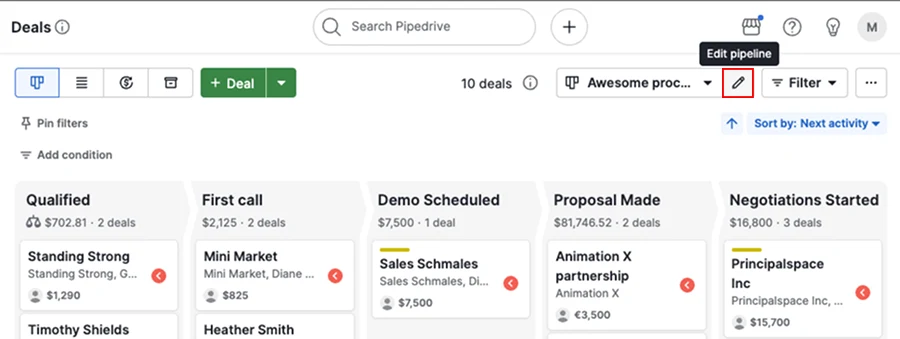
Click the pencil icon next to the active pipeline dropdown to open the pipeline editor. Screenshot source Select a different pipeline to modify when needed
To update another pipeline without switching boards first, open the pipeline dropdown in the Deals tab. Click the pencil icon next to the specific pipeline you want to modify.
Using the per-pipeline pencil icon inside the dropdown speeds up edits when managing separate SMB, enterprise, or renewal pipelines. Verify the pipeline name at the top of the editor before adding columns.
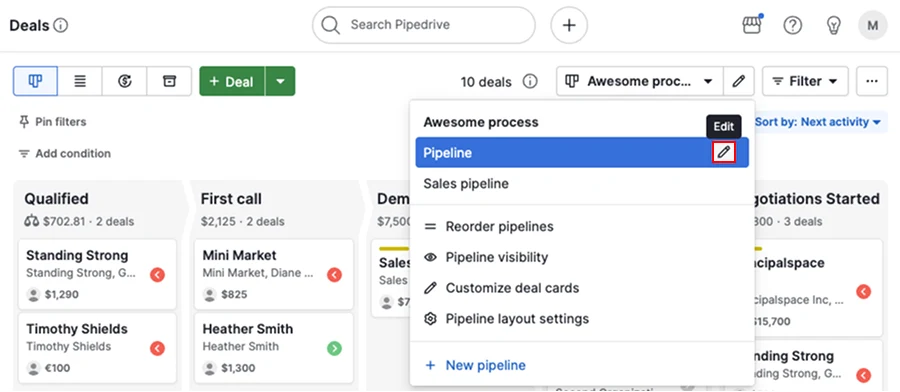
Open the pipeline dropdown and click the pencil icon beside any secondary pipeline you want to edit. Screenshot source Insert a new stage between two existing stages
Inside the pipeline editor, find the exact gap where the new sales step belongs. Click the + icon between those two existing stages to insert a new stage in that position.
Inserting the column directly between preceding and succeeding milestones preserves intuitive left-to-right progression. Only add stages that represent concrete buyer milestones rather than general status notes.
Update the stage name, probability, and rotting settings
On the newly inserted stage, update its name, set the win probability, and adjust rotting settings to match your sales cycle. Check that the probability fits logically between neighboring stages.
Accurate stage probabilities keep weighted deal forecasts reliable, while rotting settings highlight deals sitting idle past your target turnaround window.
How does this Pipedrive setup work in practice?
Worked example: Adding a security review stage to an enterprise pipeline
A software sales team adds a mandatory Security Review step between Demo Completed and Proposal Sent in its Enterprise pipeline.
| Choice | Why it matters | How to check |
|---|---|---|
| Open pipeline dropdown and click the pencil icon beside Enterprise | Opens the Enterprise pipeline editor directly without changing the SMB pipeline. | Enterprise stage columns load in the pipeline editor. |
| Click + between Demo Completed and Proposal Sent | Places the new review milestone at the exact mid-funnel handoff point. | A new stage column appears between those two stages. |
| Set name to Security Review, configure probability, and enable rotting settings | Keeps weighted pipeline forecasts accurate and flags stalled security reviews. | Security Review displays its configured probability and rotting threshold. |
Returning to the Deals pipeline view shows the Security Review column ready for reps to move qualifying enterprise deals into.
How do you verify your result in Pipedrive?
Verify your update in the Deals pipeline view by confirming the new stage column appears in sequence with its name, probability, and rotting rules active. Next, check your Pipedrive automations to ensure stage-change triggers account for the new milestone.
| Step | What you should see |
|---|---|
| Open the pipeline editor from the deals tab | Pipedrive opens the pipeline editor for your currently active pipeline. |
| Select a different pipeline to modify when needed | The pipeline editor loads the existing stage columns for your chosen pipeline. |
| Insert a new stage between two existing stages | A new stage column appears immediately between the two stages where you clicked +. |
| Update the stage name, probability, and rotting settings | The new stage displays its updated name, probability value, and configured rotting settings. |
Related Pipedrive guides include How to configure automation conditions and branching in Pipedrive and How to set up workflow automation templates in Pipedrive.
Which official Pipedrive sources were checked?
Every step and limit in this Pipedrive guide was verified against official documentation on 27 Nov 2026 following how we check figures, alongside more walkthroughs in our Pipedrive tutorials hub:
How do you troubleshoot common Pipedrive issues?
How do I edit another pipeline without switching my active deals view?
Open the Deals tab in pipeline view and click the pipeline dropdown. Click the pencil icon beside any listed pipeline to open that pipeline directly in the editor.
Can I insert a stage in the middle of my pipeline instead of at the end?
Yes, the pipeline editor shows a + icon between every pair of existing stages. Clicking + between any two stages inserts the new stage directly in that spot.
Which stage properties should I update right after clicking the plus icon?
Update the stage name, set its win probability for accurate deal forecasting, and configure rotting settings to flag inactive deals. Setting all three aligns the stage with the rest of your pipeline.
 Reviewed byDanny Kirk
Founder of ReddiReach.
 Checked byAndrés Felipe
Digital designer and marketer.
Every figure is checked against the vendor's own page. Read our editorial standards.