
Key Takeaways
- Open Tools and apps > Automations and click + Automation to configure filter conditions and If/else condition branches.
- Decide whether each rule checks a field update (active condition) or a current field state (passive condition) before building.
- Set your trigger item, pick active or passive operators, stack filters onto suggested triggers, and configure if/else paths.
- Confirm both condition met and condition not met paths show the intended steps after clicking Apply conditions.
You can combine active and passive conditions with if/else branching in Pipedrive Automations to control which records qualify and which action path runs. Revenue teams use these filters to prevent noisy triggers and route deals, leads, and activities down tailored follow-up sequences.
For plan limits and team seat pricing behind this workflow, read our Pipedrive review or connect Pipedrive to AI agents in Pipedrive API and MCP.
Key steps
What do you need before starting in Pipedrive?
Pipedrive requires the following workspace setup before you begin:
- Access to Tools and apps > Automations from your Pipedrive account menu
- Existing pipeline stages, labels, or saved filters that your conditions will evaluate
- Team agreement on whether user checks evaluate Owner/assigned to user is or Creator is
How do you complete the steps in Pipedrive?
Follow these 5 steps in Pipedrive in order:
Create a workflow and select the trigger item
Open your account menu, go to Tools and apps > Automations, and click + Automation. Configure your trigger and choose the target item (deal, person, organization, or activity) before defining conditions.
Conditions filter which records proceed. Picking the record type upfront exposes the exact operators for that item.
Select active or passive condition operators
Choose an active condition when rules depend on an update: Has changed to, Has changed, Was, Was not, or Filter matches. Choose a passive condition to check current state: Is, Contains, Is not empty, Owner/assigned to user is, or Creator is.
Watch timing closely: Was and Was not inspect values right before the update, Is checks the new value on updates, and Creator is checks the original creator rather than current owner.
Stack passive filters onto suggested stage triggers
With suggested triggers like a deal moving to a stage, review the automatic active rule Pipedrive adds (Deal stage has changed to your stage). Add passive checks underneath, such as Label Is New client, so all rules must pass.
Pairing active stage changes with passive label checks stops renewal edits from firing new-business workflows.
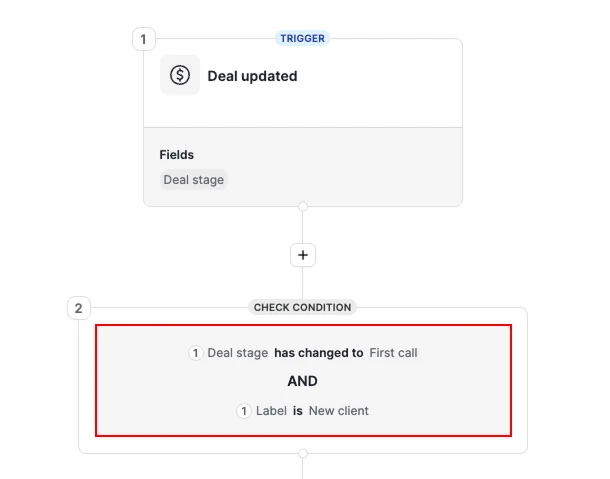
Stack a passive label condition beneath the automatic deal stage change condition to narrow qualifying deals. Screenshot source Add an if/else condition to split workflow paths
Click +, select Check a condition, and choose If/else condition. Define the true path under condition met, define the false path under condition not met, and click Apply conditions.
Branching handles two outcomes in one flow, such as adding an activity when an email gets a reply and sending a follow-up email under condition not met.
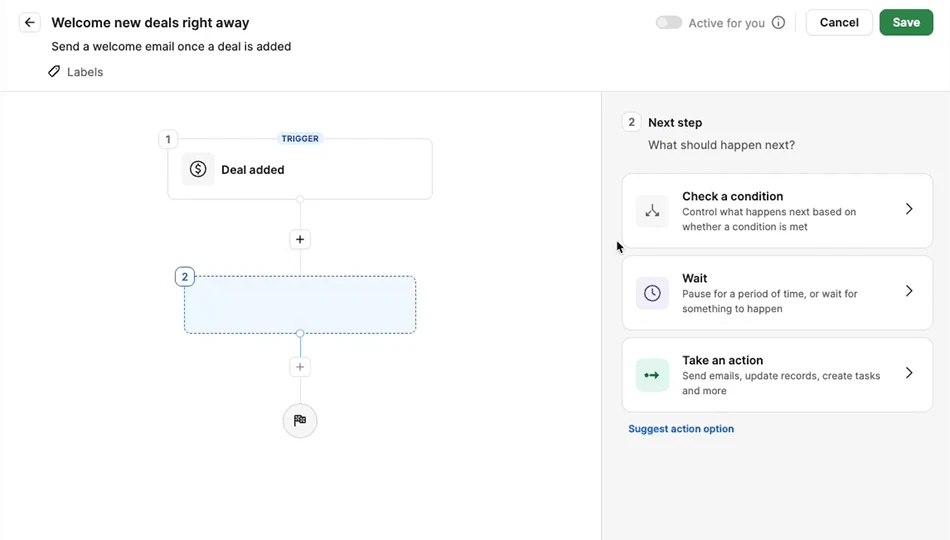
Click the plus icon, select Check a condition, and choose If/else condition to split the workflow. Screenshot source Insert or delete branches in existing automations
When inserting an If/else condition into an existing workflow, assign existing steps to condition met or condition not met, then click Apply conditions. To delete a branch, hover over the condition, click the trash can icon, and choose which path to remove.
Deleting a path removes every step inside it and reconnects the remaining steps into one linear sequence.
How does this Pipedrive setup work in practice?
Worked example: Routing new-client proposal deals by address
An account team wants New client deals moving from Qualified to Proposal to create an onsite review activity when an organization address exists, or request the address by email when empty.
| Choice | Why it matters | How to check |
|---|---|---|
| Deal stage Has changed to Proposal and Was Qualified | Confirms with active conditions that the deal entered Proposal directly from Qualified. | Deals entering Proposal from other stages are ignored. |
| Add passive condition Label Is New client | Restricts the automation to first-time customer deals. | Unlabeled deals moving to Proposal do not trigger actions. |
| Add If/else condition for Organization address Is not empty | Creates an activity under condition met and sends an email under condition not met. | Clicking Apply conditions shows both branches on the canvas. |
Testing one deal with an address and one without confirms Pipedrive routes each record down its matching branch.
How do you verify your result in Pipedrive?
Verify your setup on the Automations canvas by testing a record update that satisfies your trigger filters and If/else condition criteria. Next, review older single-path workflows to consolidate duplicate rules with branching.
| Step | What you should see |
|---|---|
| Create a workflow and select the trigger item | The canvas displays your trigger and opens condition rules for the selected item. |
| Select active or passive condition operators | Your condition block displays the selected active or passive operator and value. |
| Stack passive filters onto suggested stage triggers | The condition card lists both the stage-change rule and your passive filter. |
| Add an if/else condition to split workflow paths | The canvas splits into parallel condition met and condition not met paths. |
| Insert or delete branches in existing automations | Existing steps move to your chosen branch, or reconnect linearly after deletion. |
Related Pipedrive guides include How to add and configure a new pipeline stage in Pipedrive and How to set up workflow automation templates in Pipedrive.
Which official Pipedrive sources were checked?
Every step and limit in this Pipedrive guide was verified against official documentation on 27 Nov 2026 following how we check figures, alongside more walkthroughs in our Pipedrive tutorials hub:
How do you troubleshoot common Pipedrive issues?
Why does my ownership condition fail after a record is reassigned?
Check whether you used Creator is instead of Owner/assigned to user is. Creator is always evaluates the original user who created the item, while Owner/assigned to user is checks the currently assigned owner.
How do Is and Was behave differently on update triggers?
Was is an active condition checking the field value immediately before the triggering update. Is is a passive condition checking current state, so on an update trigger it evaluates the field's new value.
What happens to downstream steps when I delete an if/else condition?
Hovering over the condition and clicking the trash can icon prompts you to delete either condition met or condition not met. All steps in the deleted path are removed, and remaining steps reconnect into a linear flow.
 Reviewed byDanny Kirk
Founder of ReddiReach.
 Checked byAndrés Felipe
Digital designer and marketer.
Every figure is checked against the vendor's own page. Read our editorial standards.