
Key Takeaways
- Analyze historical ranking movements for specific search terms using the Position history visualization within Ahrefs Rank Tracker.
- Confirm the target keyword has been actively monitored within an Ahrefs Rank Tracker project to ensure sufficient timeline data.
- Follow five detailed steps to locate tracked terms, access the position graph, toggle devices, adjust durations, and compare pages.
- Verify mobile and desktop ranking curves independently in Ahrefs to identify platform-specific SERP volatility and historical trends.
Use the Rank Tracker Position history graph to inspect how tracked pages' rankings changed over time, with Desktop and Mobile views available.
For plan limits and team seat pricing behind this workflow, read our Ahrefs review or connect Ahrefs to AI agents in Ahrefs API and MCP.
Key steps
What do you need before starting in Ahrefs?
Ahrefs requires the following workspace setup before you begin:
- A Rank Tracker project that already tracks the keyword you want to review.
- A clear question about the time period or device view you need to examine.
How do you complete the steps in Ahrefs?
Follow these 5 steps in Ahrefs in order:
Open the project and find the keyword
Open Rank Tracker and select the project containing the keyword. Ranking history is available for keywords that have been added to that project.
You can work from the Overview report or the Ranking history report. Find the keyword whose history you want to understand before opening its graph.
Open Position history
Open the keyword's Position history graph from the report. The graph shows how pages of the target URL have ranked for that keyword on Google search results over time.
The screenshot shows the graph view with a keyword, Desktop and Mobile options, a duration selector, a Top 100 selector, and plotted URLs. It illustrates this graph interface. Your project can show different keywords and history.
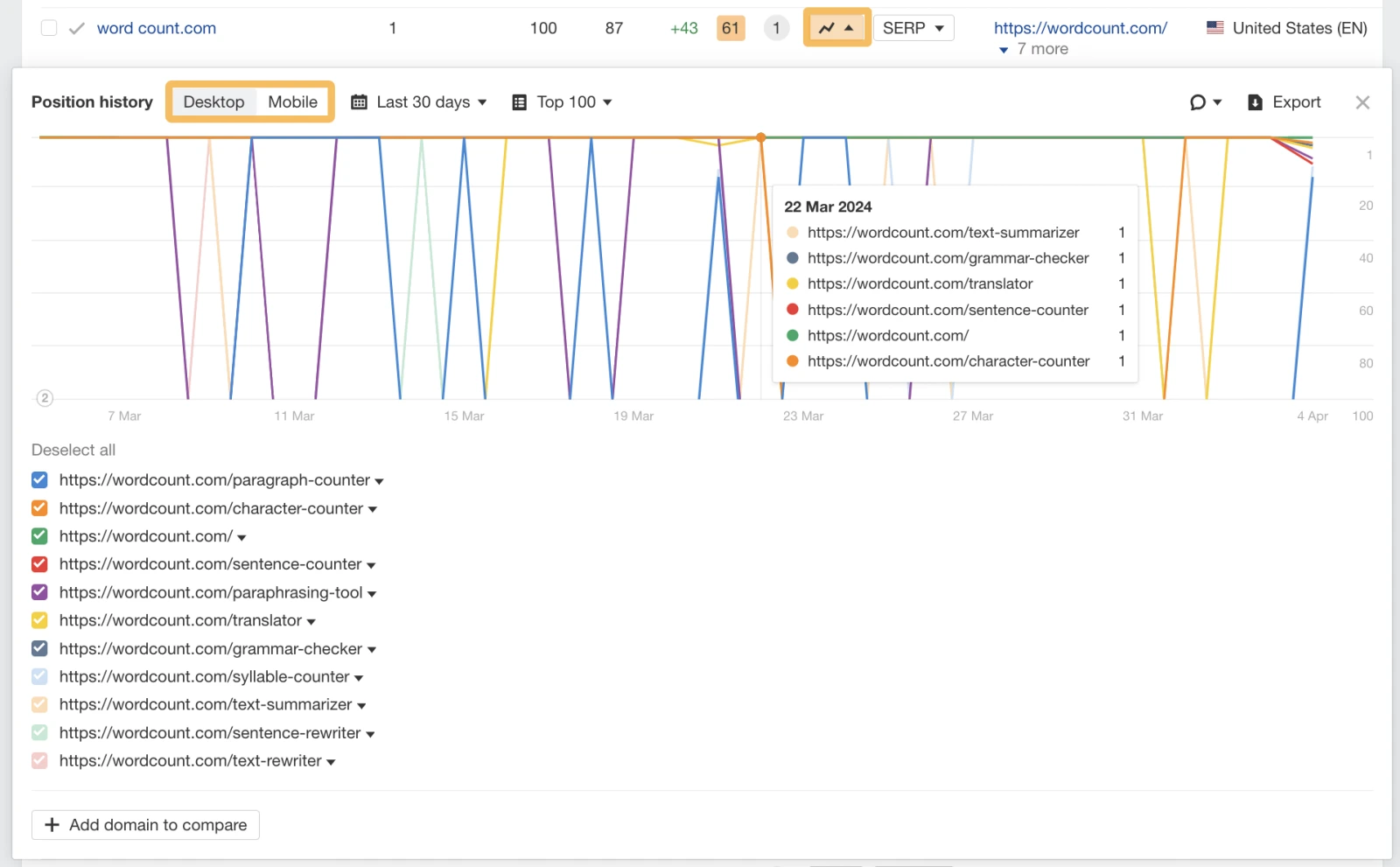
The graph view shows its device and duration controls above the plotted position history and URL list. Screenshot source Choose the device view
Use `Desktop` or `Mobile` to inspect the corresponding ranking history. The screenshot shows both controls, with Desktop selected in the pictured view.
Switch devices when your question requires a comparison. Keep track of which view you are reading so you do not mix the two histories.
Set the duration and page comparison
Use the visible duration control to choose the time span you want to inspect. The screenshot displays `Last 30 days`. The graph also shows a `Top 100` control for the plotted ranking range, along with page URLs.
Choose settings that fit your question, then note them when interpreting the chart. Available history depends on when the keyword was first added to Rank Tracker.
Read the plotted history
Follow the graph across its dates and ranking positions. Use the associated URL labels to understand which target pages are represented in the history.
Describe what the graph actually shows over the selected span. The chart can reveal movement in the displayed positions, but it does not establish why that movement occurred.
How does this Ahrefs setup work in practice?
Worked example: inspecting ranking movements over time
An SEO analyst wants to determine whether a tracked search query experienced rank shifts across mobile or desktop devices during a recent marketing campaign.
| Choice | Why it matters | How to check |
|---|---|---|
| Open the keyword's Position history graph. | The graph is the relevant view for examining ranking positions over time. | The graph heading and keyword match the analysis question. |
| Choose the Desktop view and a duration that fits the question. | The chosen device and span define what evidence the chart covers. | The selected device and duration are visible. |
| Read the dates, plotted positions, and URL labels. | These identify when the chart changes and which page history is represented. | Any observation is tied to the displayed dates and URL. |
Next, decide whether you need to inspect the Mobile history or another time span. Make that choice based on the question and available chart history, not on an assumed cause of a ranking change.
How do you verify your result in Ahrefs?
You have a device-specific view of the tracked keyword's position history for a selected duration and ranking range. The earliest available point depends on when the keyword was added to Rank Tracker, so the chart may not cover all historical search activity.
| Step | What you should see |
|---|---|
| Open the project and find the keyword | The correct project is open and the intended tracked keyword is visible. |
| Open Position history | The Position history graph is open for the keyword you selected. |
| Choose the device view | The intended device option is selected and the graph reflects that view. |
| Set the duration and page comparison | The graph displays the intended duration and ranking range, and the settings are clear. |
| Read the plotted history | You can identify the selected dates, device, and represented page or pages when describing the visible history. |
Related Ahrefs guides include Ahrefs Link Intersect guide and Find broken internal links in Ahrefs Site Audit.
Which official Ahrefs sources were checked?
Every step and limit in this Ahrefs guide was verified against official documentation on 21 Nov 2026 following how we check figures, alongside more walkthroughs in our Ahrefs tutorials hub:
How do you troubleshoot common Ahrefs issues?
Why does the graph not go back as far as expected?
Rank Tracker history depends on when the keyword was first added to the project. Check that date and set a duration within the available history.
Why does the graph show multiple URLs?
The graph can show how pages of the target URL ranked for the keyword. Use the displayed URL labels to identify which pages the lines represent.
Why does the Mobile history differ from Desktop?
The graph has separate device views. Confirm which device is selected, then compare the same keyword and relevant duration in each view.
 Reviewed byDanny Kirk
Founder of ReddiReach.
 Checked byAndrés Felipe
Digital designer and marketer.
Every figure is checked against the vendor's own page. Read our editorial standards.