
Key Takeaways
- Trello Dashboard view aggregates board-level card counts across members, lists, due dates, and labels so project leads can spot uneven task clustering quickly.
- Access requires a Trello board inside a Premium Workspace, where Dashboard view is available to all Premium Workspace members as well as invited Guests.
- Dashboard charts display raw card counts without custom field calculations or links to individual cards, meaning counts do not measure hours or task complexity.
- Verify your review by hovering over bar or pie segments to record exact category counts, then inspecting the underlying cards directly on the Trello board.
Reviewing task distribution in Trello Dashboard lets you compare card counts across board members, workflow lists, due dates, and labels in one place. Use these visual summary tiles to spot uneven card assignments or bottlenecks early, then return to the board to inspect the specific cards before changing anyone's workload.
For plan limits and team seat pricing behind this workflow, read our Trello review or connect Trello to AI agents in Trello API and MCP.
Key steps
What do you need before starting in Trello?
Trello requires the following workspace setup before you begin:
- A Trello board located inside a Premium Workspace, as Dashboard view is available to Premium members, including Guests.
- Active access to the target board and a clear operational question to check, such as whether assigned cards are clustering on one person or stalling in a single workflow list.
- Awareness that Dashboard charts report card counts only, without custom field calculations or drill-down links that identify which individual cards make up each chart segment.
How do you complete the steps in Trello?
Follow these 5 steps in Trello in order:
Open Dashboard view
Open your target Trello board and click the view selector dropdown next to the board name, then select Dashboard. Trello loads a visual overview populated with default summary tiles covering Cards per list, Cards per member, Cards per due date, and Cards per label. Starting here gives you an immediate snapshot of board activity without scrolling through long vertical columns.
Choose the distribution to review
Begin with the Cards per member tile to see how assigned tasks are spread across your contributors, then pair it with Cards per list to check where cards sit across your workflow stages. If deadline pressure or work category matters to your review, scan Cards per due date and Cards per label alongside them so you do not judge member load in isolation.
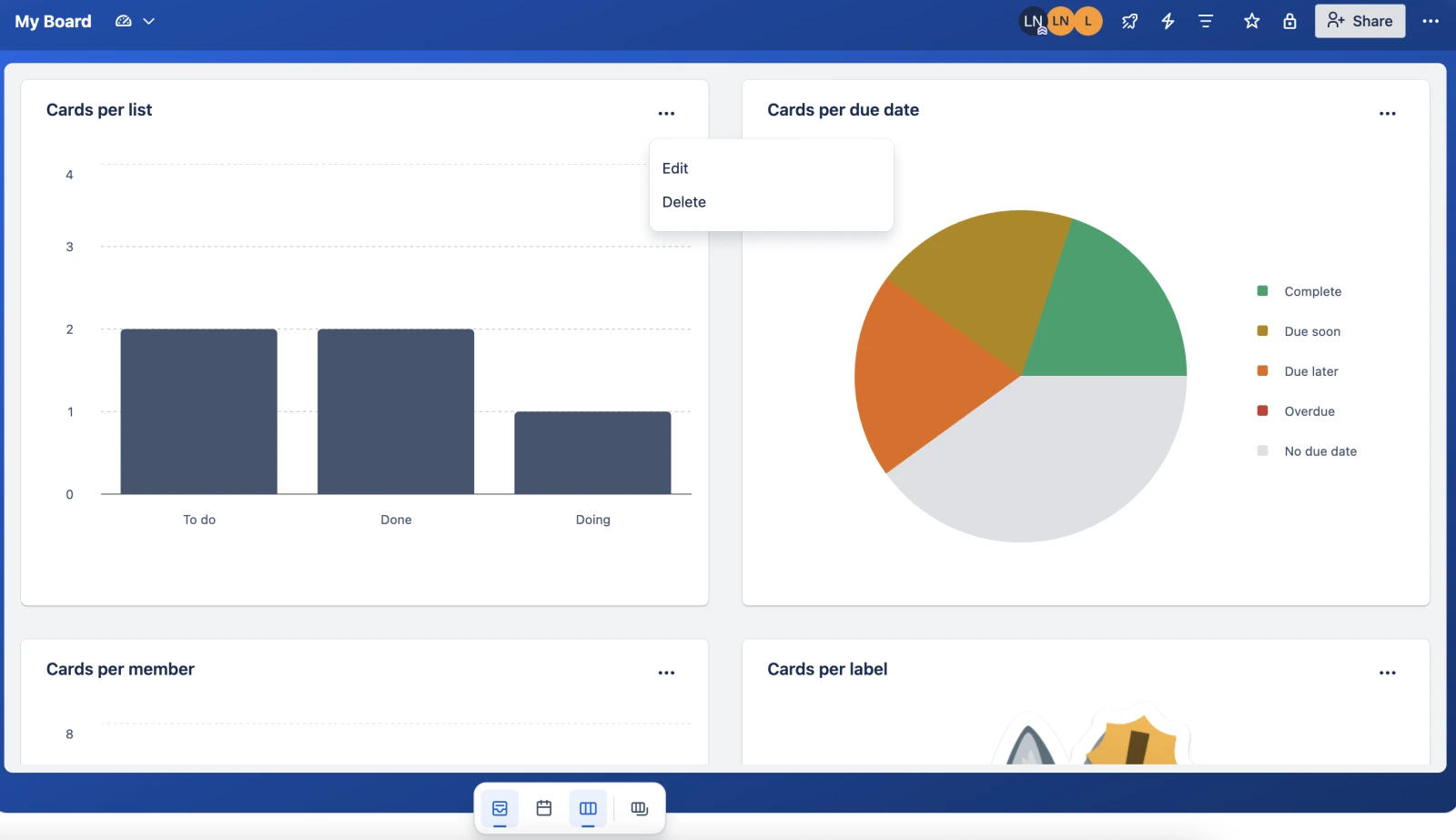
The visible dashboard tiles summarize card distribution by list, member, due date, and label. Screenshot source Read the chart counts
Move your cursor over individual bars or pie chart segments inside your chosen tiles to display the exact number of cards included in each category filter. Record the counts for the members, lists, due dates, or labels you want to compare. Treat every figure strictly as a card tally rather than a measure of effort, task complexity, or scheduled hours, because five routine checklist cards require far less capacity than two multi-step deliverables.
Interpret patterns against board context
Look for notable concentrations, such as one team member holding far more assigned cards than peers or a disproportionate share of cards sitting in a review list. Because Dashboard charts do not list or link to the individual cards behind each count, switch back to the main Trello board view and inspect the actual cards in those categories to see whether high counts reflect active blockers, completed archive candidates, or lightweight tasks.
Adjust tiles only if needed
Keep the default tile layout whenever it already answers your distribution question. If a different visual format makes comparisons clearer for your team check-in, open a tile's ... menu to edit or remove it, toggle its display between a bar graph and a pie chart, or click + at the bottom of the screen to add a new tile focused on another board data dimension.
How does this Trello setup work in practice?
Example: auditing sprint card balance for a product design team
During a weekly standup, a design lead checks a shared Trello board in a Premium Workspace after noticing several deliverables queuing up before stakeholder review.
| Choice | Why it matters | How to check |
|---|---|---|
| Open Dashboard view and hover over each bar in the Cards per member tile. | Reading exact assigned-card counts turns a general sense of uneven workload into concrete numbers by team member. | The lead records each designer's card count while noting that counts alone do not reflect design complexity. |
| Cross-check member counts against the Cards per list and Cards per due date tiles. | Comparing member totals with workflow stage and upcoming deadlines clarifies whether tasks are actively in progress or waiting on external sign-off. | The team sees whether the concentration sits in an active drafting list or a review queue. |
| Switch back to the Trello board to inspect the individual cards in the busiest list. | Dashboard view does not reveal which specific cards make up a chart count, so card-level inspection is required before moving assignments. | The team identifies the exact deliverables behind the count and confirms which ones are small copy tweaks versus full layouts. |
| Decide whether to reassign active work or clear review blockers first. | Basing adjustments on actual card scope prevents unnecessary handoffs when high card counts consist mostly of minor tasks awaiting approval. | Any card reassignment is grounded in verified task scope and deadline priority on the board. |
The design lead resolves the queue by unblocking pending stakeholder reviews on the board rather than blindly redistributing tasks based on raw chart counts alone.
How do you verify your result in Trello?
You have a clear count-based summary of how Trello cards are distributed across members, workflow lists, due dates, and labels, paired with direct board verification. Using Dashboard counts as an early signal rather than a standalone effort metric helps you catch real bottlenecks and hold informed reassignment discussions without misjudging card complexity.
| Step | What you should see |
|---|---|
| Open Dashboard view | Dashboard view is open on screen and the four default summary tiles are visible. |
| Choose the distribution to review | You have identified the specific summary tiles that match the workload or bottleneck question you are investigating. |
| Read the chart counts | You have hovered over the relevant chart segments and noted the exact card counts for each category under review. |
| Interpret patterns against board context | You have paired the observed chart pattern with a concrete check of the matching cards on the Trello board. |
| Adjust tiles only if needed | Your Dashboard tiles display the exact board dimensions and chart types needed for clear ongoing comparisons. |
Related Trello guides include How to add labels to Trello cards and How to attach a file to a Trello card.
Which official Trello sources were checked?
Every step and limit in this Trello guide was verified against official documentation on 21 Nov 2026 following how we check figures, alongside more walkthroughs in our Trello tutorials hub:
How do you troubleshoot common Trello issues?
Why can I see a card count on a Trello Dashboard chart but not click through to the individual cards?
Trello Dashboard charts report high-level category counts and do not display or link to the specific individual cards behind each bar or pie slice. After spotting an unusual count in Dashboard view, switch back to your Trello board view to inspect the matching cards directly.
Can Trello Dashboard calculate workload hours or custom field effort scores?
No. Dashboard view tracks raw card counts across board categories and does not support custom field calculations for hours, story points, or effort estimates. Always inspect the underlying cards on the board before treating a high card count as an overload.
Why is Dashboard view missing from my Trello board's view selector?
Dashboard view requires the board to reside inside a Trello Premium Workspace, where it is accessible to Premium members and Guests. Check which Workspace owns the board and confirm that the Workspace has an active Premium plan.
 Reviewed byDanny Kirk
Founder of ReddiReach.
 Checked byAndrés Felipe
Digital designer and marketer.
Every figure is checked against the vendor's own page. Read our editorial standards.