
Key Takeaways
- Trello Automation Email reports let you send recurring summaries using four prebuilt templates: board snapshot, due soon, overdue cards, and my cards.
- Each prebuilt Trello email report supports up to 10 recipient email addresses and displays a maximum of 100 cards per scheduled delivery.
- You need access to the Trello board Automation menu along with your target weekly delivery day, send time, recipient addresses, subject, and message.
- Confirm setup completion by inspecting the right-side preview, sending a test email, clicking Schedule report, and checking the Automation directory Scheduled section.
Send a recurring weekly Trello email report by opening Automation, selecting Email reports, and configuring one of four prebuilt report types for up to 10 recipients. You can verify the layout in the live preview, send a test email to yourself, and activate the recurring schedule.
For plan limits and team seat pricing behind this workflow, read our Trello review or connect Trello to AI agents in Trello API and MCP.
Key steps
What do you need before starting in Trello?
Trello requires the following workspace setup before you begin:
- Access to the target Trello board and its Automation menu.
- Agreement on which prebuilt report matches your audience: board snapshot, due soon, overdue cards, or my cards.
- Up to 10 recipient email addresses, a clear email subject line, custom message text, and your target weekly delivery day and time.
How do you complete the steps in Trello?
Follow these 5 steps in Trello in order:
Open prebuilt email reports
Open your target Trello board, select Automation in the board header, and choose Email reports. Select the prebuilt report template that matches what your audience needs to act on: board snapshot (which includes all lists and cards on the board), due soon, overdue cards, or my cards. Choosing a focused report like overdue cards keeps action-oriented updates tight, whereas board snapshot works best for a broad status overview. Note that the interface screenshot displays the Board snapshot configuration and preview.
Set the weekly schedule
Configure the recurring date and time fields so the email arrives right before your team reviews work, such as ahead of a weekly standup or planning session. Select the specific day of the week and time of day that align with your reporting cadence. While the screenshot displays a Monday schedule at 10:01 AM as an illustration, choose the exact day and hour your stakeholders expect rather than treating Monday morning as a required setting.
Add recipients and message details
Enter the email addresses of everyone who should receive the update, then write a descriptive subject line and brief introductory message. Prebuilt Trello email reports support up to 10 recipient email addresses, so prioritize direct stakeholders or a shared team alias if your audience is larger. Double-check every address for typos before moving on. Write a board-specific subject line and message so recipients immediately recognize which project the automated summary covers and why they are receiving it.
Review the email preview
Inspect the live email preview on the right side of the configuration screen. Verify that the selected report template pulls the lists and cards your recipients need to see, and check that no sensitive or internal-only board items appear unexpectedly. Keep in mind that Trello Automation email reports display up to 100 cards. If your board holds more than 100 matching cards, recipients will only see a partial list in their inbox and will need to open the Trello board directly and use the board filter for the full view.
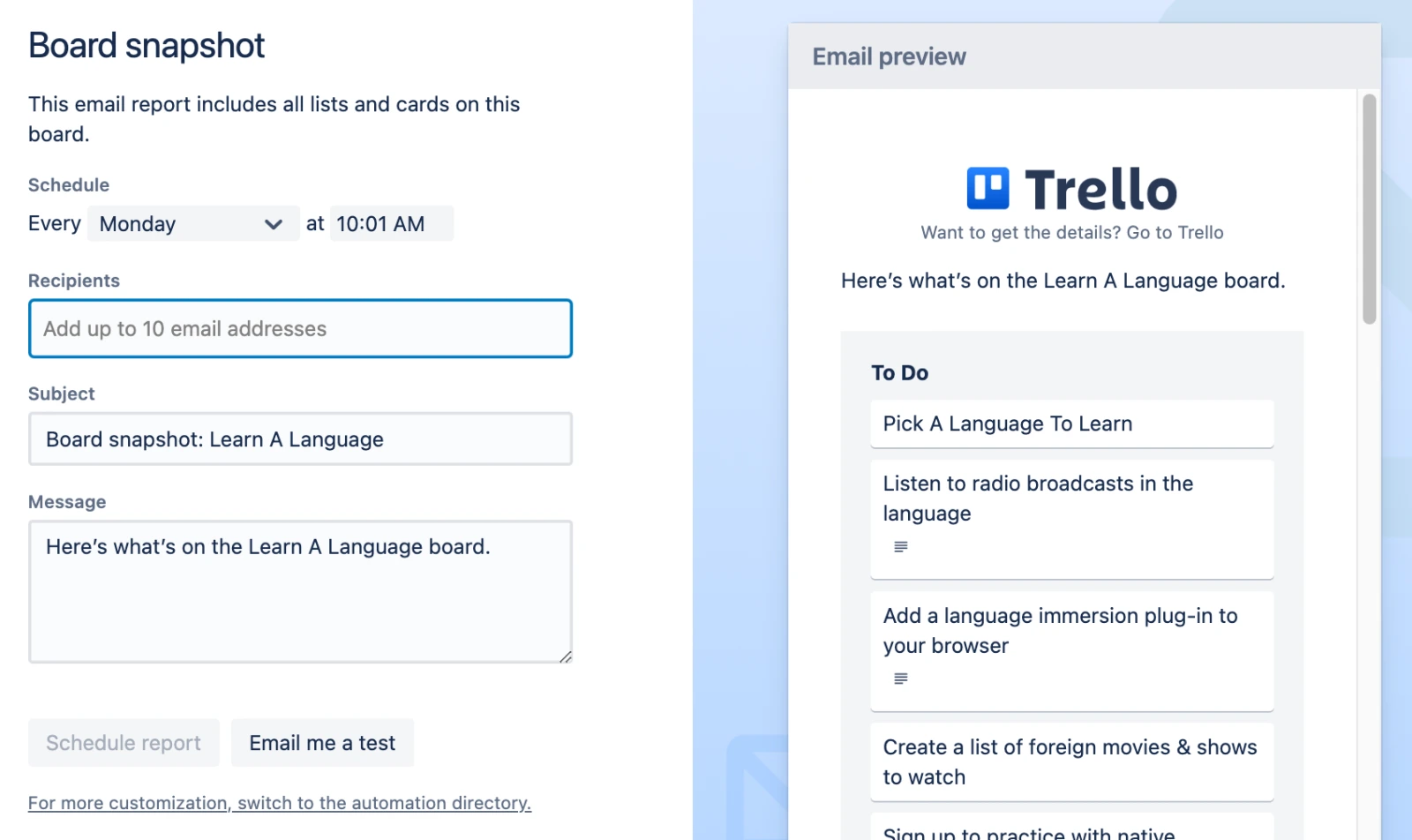
The visible Board snapshot form shows the schedule and recipient controls alongside a preview of the email content. Screenshot source Test and schedule the report
Select the option to email yourself a test first if you want to verify how the subject line, message text, and card formatting render inside an actual inbox. Once you confirm the layout and details look right, click Schedule report to activate the weekly delivery. Whenever you need to audit, pause, or review the active rule later, open the Automation directory and navigate to the Scheduled section where Trello lists your configured email report automations.
How does this Trello setup work in practice?
Example: sending a weekly editorial board snapshot to four content leads
A content operations manager wants four editorial leads to receive a recurring weekly overview of every active list and article card on their production Trello board before Tuesday standups.
| Choice | Why it matters | How to check |
|---|---|---|
| Select the prebuilt Board snapshot report under Automation > Email reports. | Board snapshot includes all lists and cards on the board, giving the editorial leads a complete view of drafts, reviews, and scheduled pieces. | The configuration header identifies Board snapshot as the active report template. |
| Set the weekly delivery day and time ahead of the Tuesday editorial review. | Delivering the summary before the meeting gives leads time to scan card statuses in their inbox. | The schedule inputs show Tuesday and the agreed pre-meeting send time. |
| Enter the four editorial leads' email addresses and set a clear board-specific subject line. | Four addresses stay well within the 10-recipient limit, and a specific subject prevents the automated email from getting lost. | All four email addresses are spelled accurately and the subject names the editorial board. |
| Check the right-side preview for card count, send a test email, and click Schedule report. | Confirming that total cards stay under the 100-card display cap and verifying inbox formatting prevents incomplete surprises. | The test email arrives cleanly and the rule appears in the Automation directory's Scheduled section. |
After the first Tuesday email arrives, the manager checks with the four leads to confirm whether the full Board snapshot answers their status questions or if switching to Overdue cards or Due soon would reduce inbox noise.
How do you verify your result in Trello?
Your Trello board now sends the chosen prebuilt email report automatically on your weekly schedule to up to 10 recipients. Stakeholders receive an inbox summary of up to 100 matching cards without needing to open the board first, and you can inspect the active rule anytime in the Automation directory's Scheduled section.
| Step | What you should see |
|---|---|
| Open prebuilt email reports | The Email reports configuration form is open and displays your chosen prebuilt report type. |
| Set the weekly schedule | The schedule fields display the exact weekly day and time your team expects to receive the report. |
| Add recipients and message details | All recipient addresses are accurate, the list contains 10 or fewer entries, and the subject and message clearly identify the board. |
| Review the email preview | The right-side preview shows the expected card list within the 100-card limit and exposes no unintended board items. |
| Test and schedule the report | The report is saved via Schedule report and appears inside the Automation directory's Scheduled section. |
Related Trello guides include How to add labels to Trello cards and How to attach a file to a Trello card.
Which official Trello sources were checked?
Every step and limit in this Trello guide was verified against official documentation on 21 Nov 2026 following how we check figures, alongside more walkthroughs in our Trello tutorials hub:
How do you troubleshoot common Trello issues?
What happens if I need to send the Trello report to more than 10 recipients?
Prebuilt email reports in Trello Automation support a maximum of 10 recipient email addresses, and Trello does not include a built-in override for larger lists. Review your recipient list carefully to keep it at or under 10 addresses before relying on the report for a broader group.
Why are some of my board's cards missing from the email preview?
Trello Automation email reports display up to 100 cards. If your board or selected report view contains more than 100 cards, the report will not show every item; open the Trello board directly and use the board filter to inspect the complete set of cards.
Where can I find or verify a weekly report after clicking Schedule report?
Open your Trello board's Automation menu and go to the Automation directory's Scheduled section. Your active email report automation is listed there whenever you need to confirm its status.
 Reviewed byDanny Kirk
Founder of ReddiReach.
 Checked byAndrés Felipe
Digital designer and marketer.
Every figure is checked against the vendor's own page. Read our editorial standards.