
Key Takeaways
- Create custom sections in the Slack desktop sidebar to categorize active channels, direct messages, and project conversations systematically.
- Ensure your workspace operates on a paid Slack subscription, which provides the custom section organization feature within the desktop interface.
- Execute the four steps by generating a section from the Channels menu, moving priority conversations inside, organizing related channels, and adjusting order.
- Confirm the layout by verifying that moved conversations appear under the new collapsible section header within the Slack Home tab.
Slack custom sections group related channels, direct messages, and app conversations into focused sidebar categories. Organizing workspace conversations into collapsible custom sections keeps ongoing project discussions accessible while decluttering daily desktop communication.
For plan limits and team seat pricing behind this workflow, read our Slack review or connect Slack to AI agents in Slack API and MCP.
Key steps
What do you need before starting in Slack?
Slack requires the following workspace setup before you begin:
- Use Slack on a paid plan to create custom sections.
- Open the Home tab in the desktop app or Slack desktop.
How do you complete the steps in Slack?
Follow these 4 steps in Slack in order:
Create a custom section
From the Home tab, hover over the Channels section in your sidebar and click its three dots icon. Choose Channel section. Enter a name, such as “Client projects,” or select a suggestion. Click the smiley face icon if you want to choose an emoji, then click Create. Custom sections organize your own sidebar and do not change what coworkers see.
Choose a name that will still make sense when the project grows, such as a client or workstream label rather than a temporary task name. Since custom sections organize only your sidebar, use a label that helps you find conversations quickly without implying that coworkers will see the same grouping.
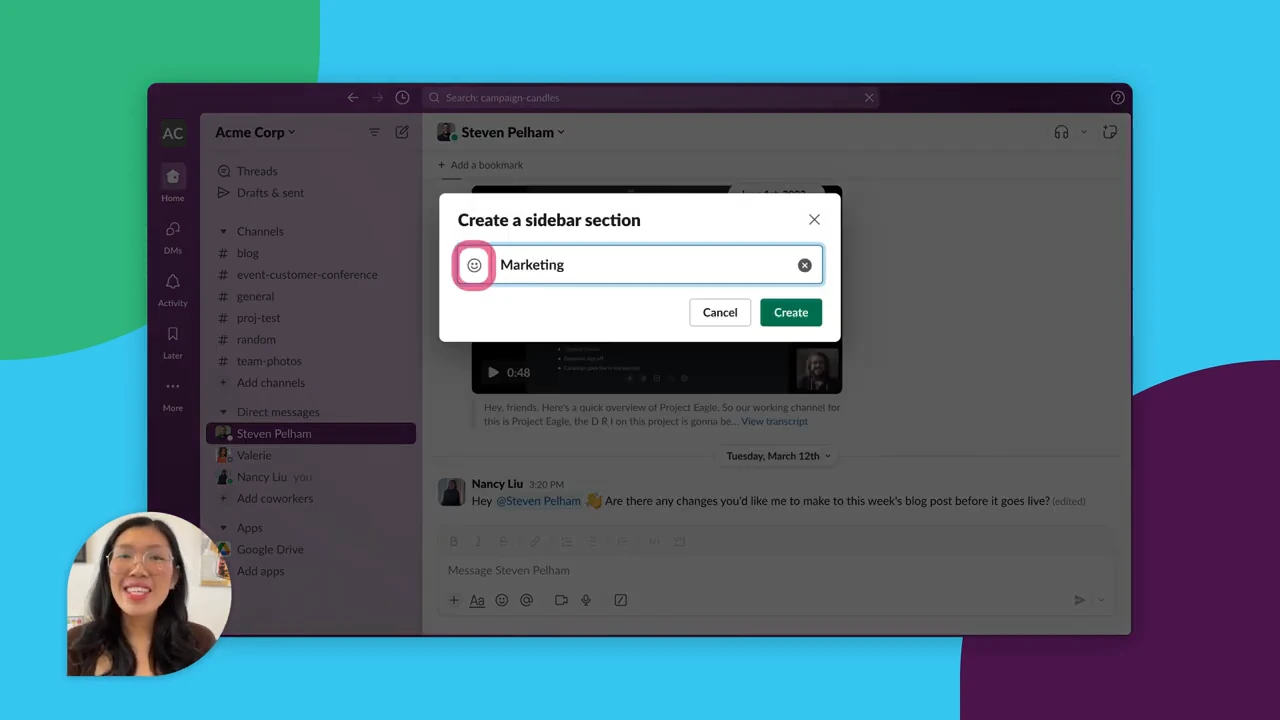
The Create a sidebar section dialog asks for the name that will appear in your sidebar. Screenshot source Move a conversation into the section
Open a channel or direct message you want to organize. At the top of the conversation, click the star icon, or the emoji for its current custom section. Choose the section you just created. You can also drag a conversation from the sidebar onto a section.
Move a conversation only after checking its header. A channel and a direct message can both be organized, but a mistaken move may make the sidebar harder to scan. If you are unsure which section contains it, use the star or current section emoji to inspect the available choices before selecting one.
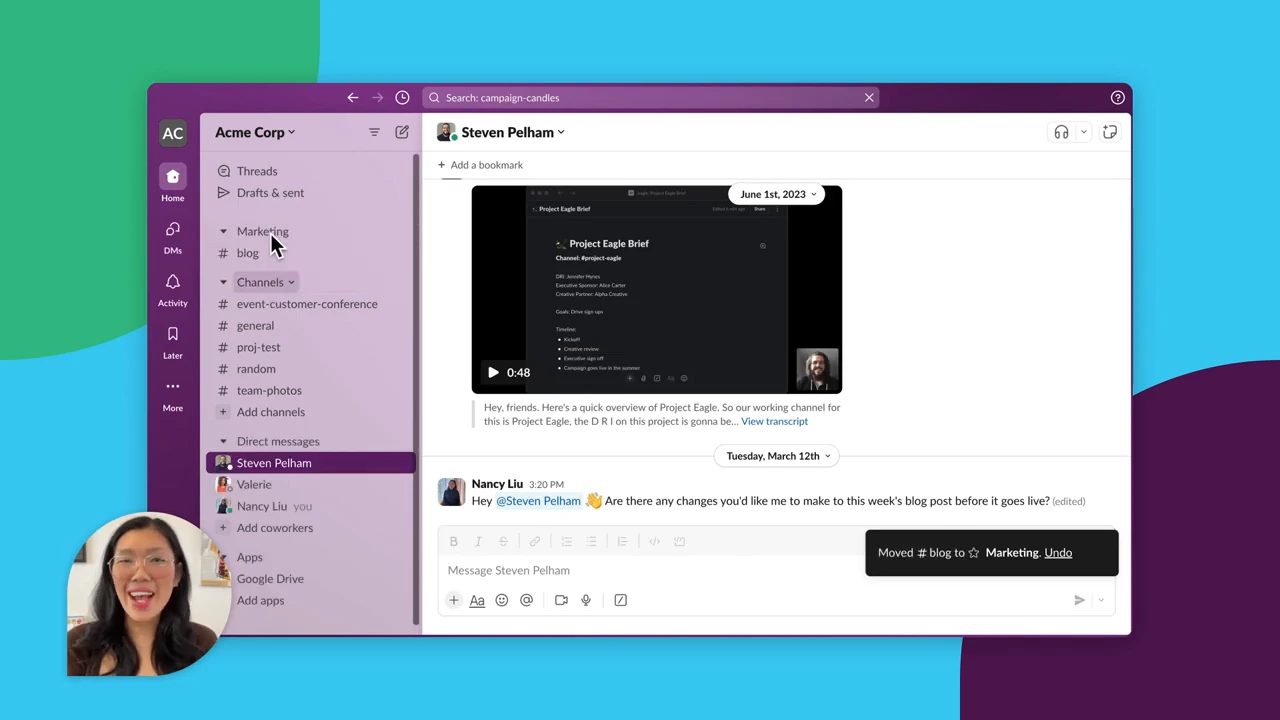
A conversation moved into the Marketing section appears under its heading in the sidebar. Screenshot source Group other related conversations
Repeat the move for other channels or DMs that belong together. For example, add the active client channels you use each week to “Client projects,” while keeping internal team channels in their existing section. If you need to move several conversations together, click Manage my sidebar at the top of Home, choose Bulk manage conversations, select the conversations, click Move to…, and choose a section.
For bulk moves, select a small, coherent group first, such as the active channels for one client. Click the checkmark to finish the bulk change, then inspect the section before moving another group. This reduces the chance of mixing unrelated conversations when several are selected.
Adjust the section’s order or visibility
Hover over the custom section name and click the three dots icon. Hover over Filter to choose what conversations appear, or hover over Sort to choose A-Z, Recency, or Priority. Slack’s default Active only filter hides conversations without activity in the past 30 days, so change the filter if an older conversation seems to be missing.
If a conversation seems absent, inspect Filter before moving it again. The default Active only setting hides conversations without activity in the past 30 days. Changing the filter can make older conversations visible, while a tighter filter can keep a busy section focused.
How does this Slack setup work in practice?
Worked example: separating active client conversations from reference channels
A project manager creates dedicated custom sections in the Slack sidebar to isolate active client communication channels from general company reference rooms.
| Choice | Why it matters | How to check |
|---|---|---|
| Create a section named “Active clients” | A durable label describes the grouping even as individual client conversations change. | Confirm the named section appears in the sidebar. |
| Move the active client channel and its related DM | Keeping closely related conversations together can make daily navigation faster. | Open each conversation and confirm its header before choosing the section. |
| Leave internal and reference channels in their current sections initially | This limits the first change to conversations with a clear shared purpose. | Inspect the new section and confirm no unrelated conversation was moved. |
| Review the section filter if an older client channel is missing | Active only can hide conversations without recent activity, even if they remain assigned to the section. | Inspect Filter and choose a view that includes the needed conversation. |
Expand and collapse the newly created section in the sidebar to ensure all selected client channels remain grouped and easily accessible.
How do you verify your result in Slack?
Confirm that the custom section appears in Home and contains the conversations you moved. Use it as a focused entry point for that set of work. The organization is personal to your sidebar.
| Step | What you should see |
|---|---|
| Create a custom section | The named section appears in your sidebar. |
| Move a conversation into the section | The conversation appears under the selected section in your sidebar. |
| Group other related conversations | The related conversations are listed in the intended section. Bulk changes are finished when you click the checkmark. |
| Adjust the section’s order or visibility | The section displays conversations according to the filter and sort choices you selected. |
Related Slack guides include How to build a Slack request workflow with a form and How to find a past message with Slack search modifiers.
Which official Slack sources were checked?
Every step and limit in this Slack guide was verified against official documentation on 21 Nov 2026 following how we check figures, alongside more walkthroughs in our Slack tutorials hub:
How do you troubleshoot common Slack issues?
Why can’t I create a custom section?
Slack makes custom sections available on paid plans. On the free version, use the available sidebar preferences and default sections instead.
Will my coworkers see the custom section I made?
No. Custom sections are only visible in your own sidebar. To give teammates a similar starting point, Slack supports sharing a sidebar section.
I moved a conversation, but it disappeared from the section. Did the move fail?
First inspect the section’s Filter setting. Active only hides conversations without activity in the past 30 days. If the conversation still does not appear, open it and check its star or current section emoji to confirm which section it belongs to.
 Reviewed byDanny Kirk
Founder of ReddiReach.
 Checked byAndrés Felipe
Digital designer and marketer.
Every figure is checked against the vendor's own page. Read our editorial standards.