
Key Takeaways
- Schedule messages in Slack to dispatch announcements and updates automatically to channels or direct messages at predetermined times.
- Confirm active membership in the target Slack conversation and establish the precise delivery date and target time zone before scheduling.
- Complete the four operational steps by opening the target conversation, typing the message, picking a delivery slot, and reviewing Scheduled items.
- Verify the scheduled message by checking that it sits queued in the Scheduled tab within Slack Drafts & sent before release.
Slack allows users to schedule messages for future delivery across public channels, private channels, direct messages, and discussion threads. Queuing messages ahead of time facilitates structured team communication across distributed time zones without sending untimely notifications.
For plan limits and team seat pricing behind this workflow, read our Slack review or connect Slack to AI agents in Slack API and MCP.
Key steps
What do you need before starting in Slack?
Slack requires the following workspace setup before you begin:
- Be signed in to Slack and open the channel, DM, or thread where the message belongs.
- Know the intended send date and time.
How do you complete the steps in Slack?
Follow these 4 steps in Slack in order:
Open the destination conversation
In Slack, open the channel, direct message, or thread where you want your message to appear. Check the conversation header before drafting, especially if you regularly post in several project channels.
Check the conversation header before drafting, especially when two project channels have similar names. A scheduled message is tied to the conversation you opened, so choosing the right destination first prevents a polished update from being queued in the wrong place.
Write the message
From the Messages tab, click the message field and enter your text. Add any attachments, emoji, mentions, or formatting you need. For example, draft a project update now and schedule it to reach a team in another time zone during its working day.
For a message with a mention or attachment, review the complete draft before scheduling. Consider whether the content will still make sense at send time, particularly if a date, status, or link may change. If it may become stale, schedule a reminder to review the draft instead of sending it automatically.
Choose a send time
Click the arrow icon next to the paper plane icon, then choose the option to schedule the message for later. Select a suggested time or set the date and time you want. Review the destination and timing before confirming the schedule.
When choosing a time, account for the audience’s working day and the intended date. Review the selected time before confirming, especially when coordinating across time zones. The scheduled item’s appearance in Scheduled is the completion check, not an indication that recipients have already received it.
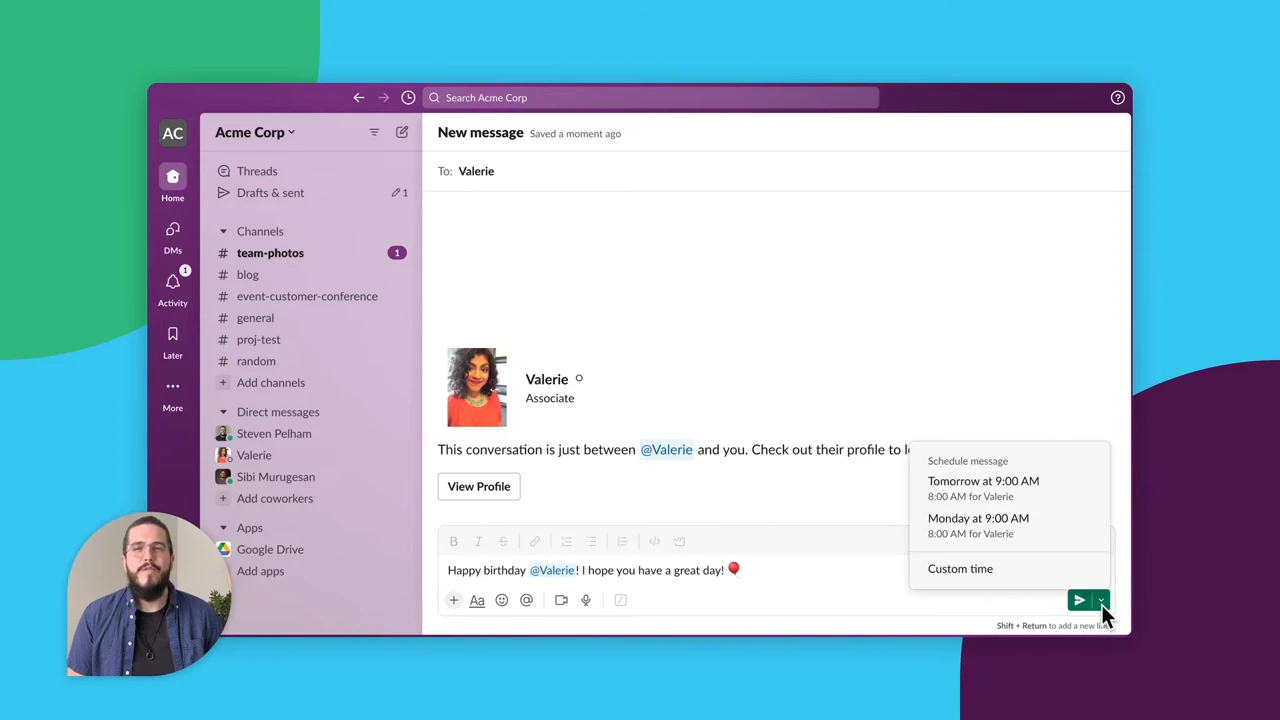
Open the arrow next to Send to pick a suggested time or enter a custom time. Screenshot source Review the scheduled message
At the top of your sidebar, click Drafts & sent, then select Scheduled. Find the message and check its text, destination, and send time. If something needs to change, hover over it to view available options, such as editing or deleting.
Use Scheduled as the source of truth for a queued message. Before editing or deleting, confirm its destination and send time in the entry. If you revise the message, check the updated text and timing there so the final version is the one you intended.
How does this Slack setup work in practice?
Worked example: scheduling a morning project briefing across time zones
A distributed team lead drafts a morning kickoff message in the evening to reach remote team members during their local business hours.
| Choice | Why it matters | How to check |
|---|---|---|
| Open the project channel and verify its header | The update belongs where the team will see and discuss it. | Confirm the channel name before drafting. |
| Draft the update with the current status and links | A complete draft reduces the chance of missing context when it sends later. | Review the text, mentions, and attachments in the message field. |
| Choose a send time during the team’s workday | Timing should suit the recipients rather than the sender’s local convenience. | Review the selected date and time before confirming. |
| Check the entry under Drafts & sent, then Scheduled | This verifies the queued destination, content, and send time in one place. | Confirm the message appears with the expected details. |
Locate the message under Scheduled in Drafts & sent to verify the target channel, text formatting, and scheduled delivery timestamp.
How do you verify your result in Slack?
Verify the message in Drafts & sent under Scheduled. If needed, edit or delete it there before Slack sends it.
| Step | What you should see |
|---|---|
| Open the destination conversation | The intended conversation is open and named in its header. |
| Write the message | Your complete text appears in the message field in the correct conversation. |
| Choose a send time | Slack confirms the scheduled message, or it appears in the Scheduled tab. |
| Review the scheduled message | The message appears under Scheduled with the expected content and send time. |
Related Slack guides include How to build a Slack request workflow with a form and How to find a past message with Slack search modifiers.
Which official Slack sources were checked?
Every step and limit in this Slack guide was verified against official documentation on 21 Nov 2026 following how we check figures, alongside more walkthroughs in our Slack tutorials hub:
How do you troubleshoot common Slack issues?
Where can I change or cancel a scheduled message?
Open Drafts & sent at the top of your sidebar and select Scheduled. Hover over the message to see available options.
Can I schedule a reply inside a thread?
Yes. Open the thread, enter your reply, and use the arrow beside the paper plane icon to schedule it.
I scheduled a message, but the project details may change before it sends. What should I do?
Open Drafts & sent and select Scheduled. Find the entry, confirm its destination, and use the available edit or delete options to revise or cancel it. Then check the Scheduled entry again so the queued version reflects the current decision.
 Reviewed byDanny Kirk
Founder of ReddiReach.
 Checked byAndrés Felipe
Digital designer and marketer.
Every figure is checked against the vendor's own page. Read our editorial standards.