
Key Takeaways
- Use Content Editor > + New Content (or Import content) to generate guidelines scored by Content Score, SEO Score, and AI Search Score.
- Prepare a primary target keyword (up to 20 per editor), target location, and optional Google Search Console connection before starting.
- Complete five steps: create or import an editor, set template and brand context, customize competitors and terms, optimize with Auto-Optimize, and add internal links before export.
- Confirm completion when all three scores in the top-right Guidelines panel hit your benchmark and Pre-Publish Review passes.
Build competitor-backed briefs and optimize drafts in Surfer SEO Content Editor so articles rank in search engines and earn AI citations. Real-time feedback across Content Score, SEO Score, and AI Search Score guides entity coverage, internal linking, and pre-publish review.
For plan limits and team seat pricing behind this workflow, read our Surfer SEO review or connect Surfer SEO to AI agents in Surfer SEO API and MCP.
Key steps
What do you need before starting in Surfer SEO?
Surfer SEO requires the following workspace setup before you begin:
- Active Surfer SEO workspace with Content Editor access
- Primary target keyword (up to 20 related terms) and target search location
- Google Search Console connected if using automated Internal Links
How do you complete the steps in Surfer SEO?
Follow these 5 steps in Surfer SEO in order:
Start a new Content Editor or import a published URL
Open Content Editor and click + New Content (or Import content for a live URL, or Create content in bulk). Enter up to 20 keywords, review AI prompts to get cited for (or Add custom prompt and Track this prompt in AI Tracker), choose location, language, crawler (desktop or mobile), and folder, then start Deep research.
One main keyword is usually enough, while suggested terms show search volume and relevance. Group editors into Folders by client or stage to stay organized.
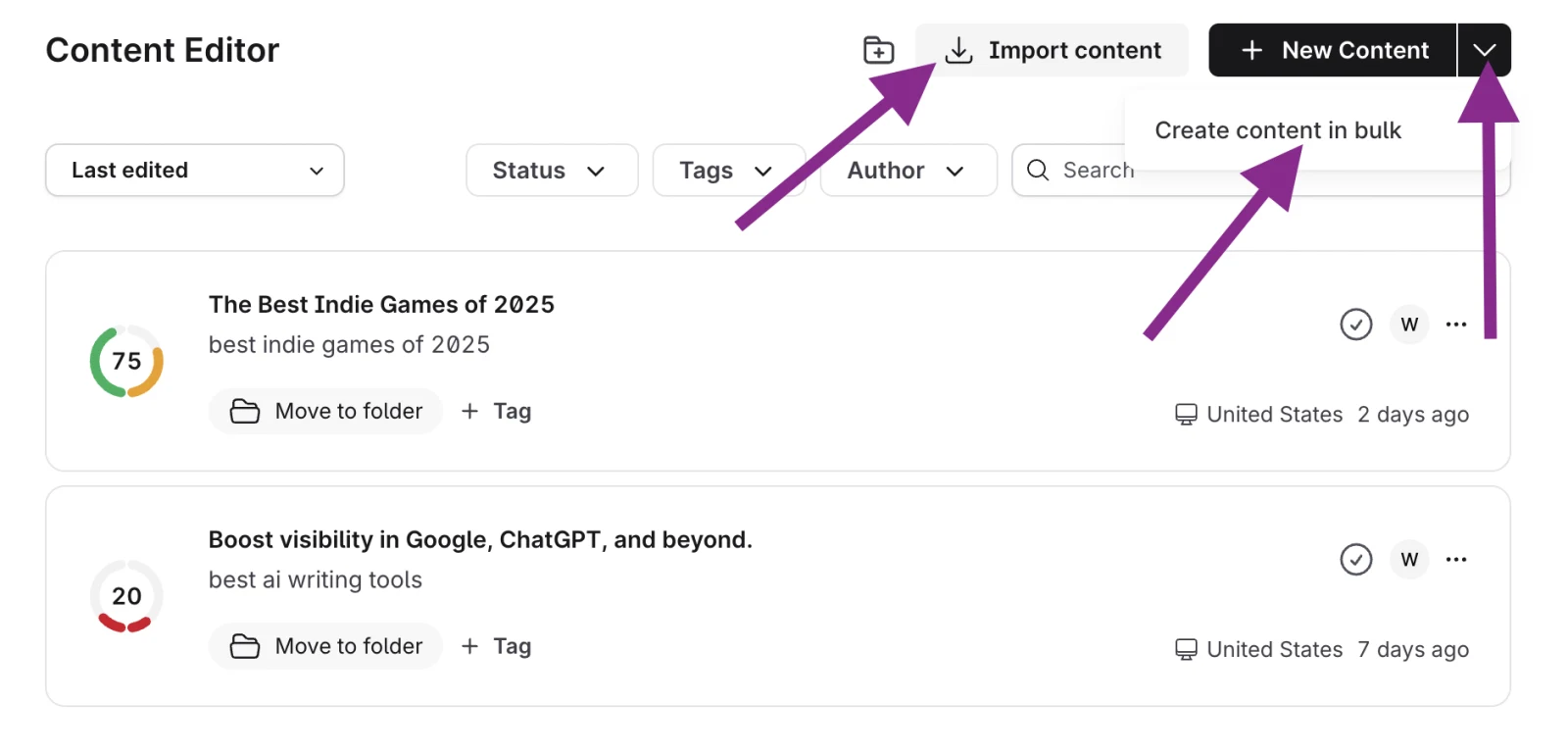
Use + New Content, Import content, or the bulk creation dropdown at the top of the Content Editor dashboard to start. Screenshot source Select a template, brand context, and writing mode
Choose a Template and open Context & instructions to check Ranking content, toggle Brand Knowledge, pick Custom Voice, adjust Word count, and add up to 5 reference URLs. In Writing mode, pick Write yourself or Generate content.
Write yourself opens a blank guided editor, whereas Generate content drafts with Surfer AI (enable Review outline before generating content under Customize to approve headings first).
Refine competitors, structure, and terms in Customize
Click the gear icon (Customize) to adjust Competitors, Content Structure, Terms, and Topics & Questions, then click Let's go.
Updating Competitors recalculates target word, paragraph, heading, and image counts plus NLP terms so writers avoid off-intent outliers.
Draft and enrich copy with Guidelines and Auto-Optimize
Follow Research & Create Outline and Write & Optimize in Content Editor Guidelines while tracking Content Score, SEO Score, and AI Search Score. Click Auto-Optimize, click suggestions to compare or restore original text, and save and close.
Answering the reader's question early lifts SEO Score and AI Search Score. Review Auto-Optimize diffs carefully to preserve brand accuracy.
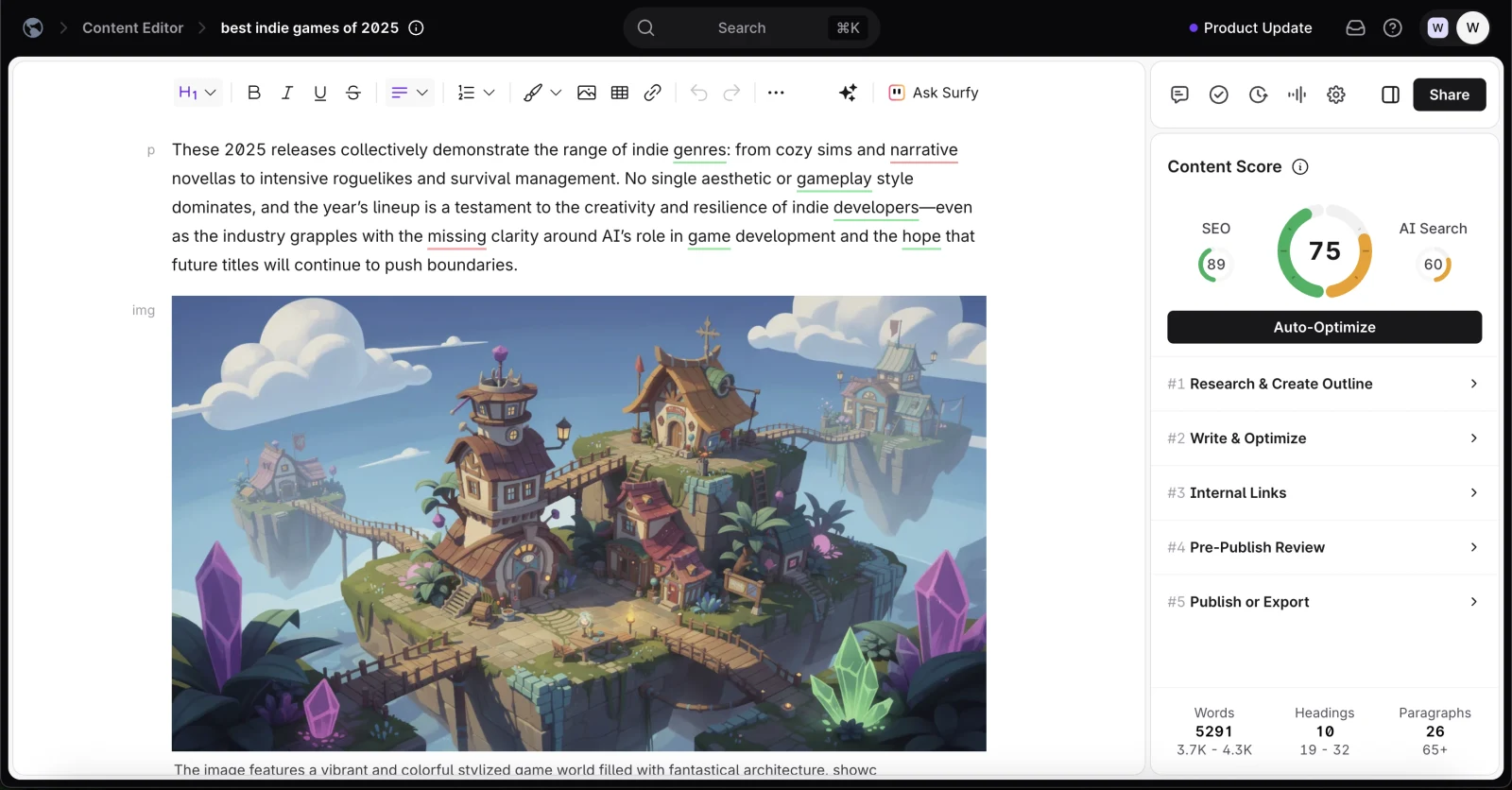
Track Content Score, SEO Score, and AI Search Score at the top of the right-hand Content Editor Guidelines panel. Screenshot source Insert internal links, run pre-publish checks, and export
In Internal Links, connect Google Search Console, choose Site to add links from, and click Request links to insert anchors. Complete Pre-Publish Review, then use Publish or Export for meta tags, text/HTML/Markdown copy, .html or .md download, Add prompt to AI Tracker, or WordPress export.
Add custom URLs to Internal Links if needed and discard awkward placements before saving.
How does this Surfer SEO setup work in practice?
Worked example: Refreshing a published B2B guide in Content Editor
A content manager imports an existing guide into Surfer SEO Content Editor to improve search rankings and AI assistant citations.
| Choice | Why it matters | How to check |
|---|---|---|
| Select Import content with desktop crawler and check Track this prompt in AI Tracker | Loads live page text immediately while monitoring AI assistant prompts. | Existing copy opens alongside fresh Deep research guidelines. |
| Run Auto-Optimize and inspect each section diff before saving | Inserts missing NLP entities fast while allowing manual restores where needed. | Content Score, SEO Score, and AI Search Score climb cleanly. |
| Click Request links in Internal Links using the Search Console domain | Finds domain URLs and places contextual internal anchors automatically. | Approved internal links appear anchored ready for WordPress export. |
The manager exports the optimized draft to WordPress with verified internal links, clean readability, and active AI Tracker monitoring.
How do you verify your result in Surfer SEO?
Confirm in Content Editor Guidelines that Content Score, SEO Score, and AI Search Score reflect your final draft and links. Move the editor to your published Folder and track prompts in AI Tracker.
| Step | What you should see |
|---|---|
| Start a new Content Editor or import a published URL | Deep research begins while the wizard advances to template selection. |
| Select a template, brand context, and writing mode | The editor opens immediately and populates Guidelines once analysis finishes. |
| Refine competitors, structure, and terms in Customize | Clicking Let's go saves your custom targets into the Guidelines panel. |
| Draft and enrich copy with Guidelines and Auto-Optimize | All three scores update in real time as approved edits apply. |
| Insert internal links, run pre-publish checks, and export | Approved internal links appear anchored and your export completes. |
Related Surfer SEO guides include How to configure workspace Brand Knowledge in Surfer SEO and How to review on-page SEO metrics in Surfer SEO Audit.
Which official Surfer SEO sources were checked?
Every step and limit in this Surfer SEO guide was verified against official documentation on 27 Nov 2026 following how we check figures, alongside more walkthroughs in our Surfer SEO tutorials hub:
How do you troubleshoot common Surfer SEO issues?
Should I add 20 keywords every time I create a Content Editor?
Usually one primary keyword is enough, though you can enter up to 20 closely related variants sharing the same intent. Check suggested alternatives for search volume and relevance first.
Can I revert individual changes made by Auto-Optimize?
Yes, click any Auto-Optimize suggestion to inspect the exact modified section against your original copy. Restore the original phrasing on any unwanted edit before saving and closing.
How do I enable automated Internal Links inside Content Editor?
Open step 3 (Internal Links) in Guidelines, connect Google Search Console, select Site to add links from, and click Request links. Review suggested or custom URLs before inserting anchor text into your draft.
 Reviewed byDanny Kirk
Founder of ReddiReach.
 Checked byAndrés Felipe
Digital designer and marketer.
Every figure is checked against the vendor's own page. Read our editorial standards.