
Key Takeaways
- Assign custom category tags to keywords in Ahrefs Rank Tracker to monitor segment performance and visibility across targeted keyword clusters.
- Ensure an active Ahrefs account with an established Rank Tracker project containing populated keyword ranking data in the Overview tab.
- Complete the five steps by opening project keywords, selecting target terms, opening tag management, applying the tag, and reviewing reporting.
- Verify tag assignment by navigating to the Tags tab in Ahrefs Rank Tracker to confirm the grouped keywords aggregate properly.
Ahrefs Rank Tracker allows users to assign descriptive tags to tracked search keywords for categorized performance reporting. Grouping search terms by product line or content category enables granular visibility into segment rankings and visibility trends.
For plan limits and team seat pricing behind this workflow, read our Ahrefs review or connect Ahrefs to AI agents in Ahrefs API and MCP.
Key steps
What do you need before starting in Ahrefs?
Ahrefs requires the following workspace setup before you begin:
- An Ahrefs project with Rank Tracker set up and keywords listed in its Overview report.
- A clear tag name that describes the group you want to track.
How do you complete the steps in Ahrefs?
Follow these 5 steps in Ahrefs in order:
Open the project's keyword list
Go to Rank Tracker and open the project whose keywords you want to organize. In its Overview report, locate the Keywords table.
Choose a group of keywords that belong together, such as a topic or campaign. The tag will help you review the selected keywords as a group.
Select the keywords
Select each keyword that should receive the tag. The visible selection count can help you confirm that you have included the intended rows.
If the group spans more rows than are visible, select only the rows you can verify. You can apply the tag to another selection later if needed.
Open tag editing
Choose `Edit tags` for the selected keywords. The tag editor lets you search for a tag or add one.
To create a label, enter a descriptive name. To reuse a tag already in the project, find and select it instead. This guide's screenshot shows a selection of three keywords and an open tag editor. It also shows existing labels, so the editor may display tags already in your project.
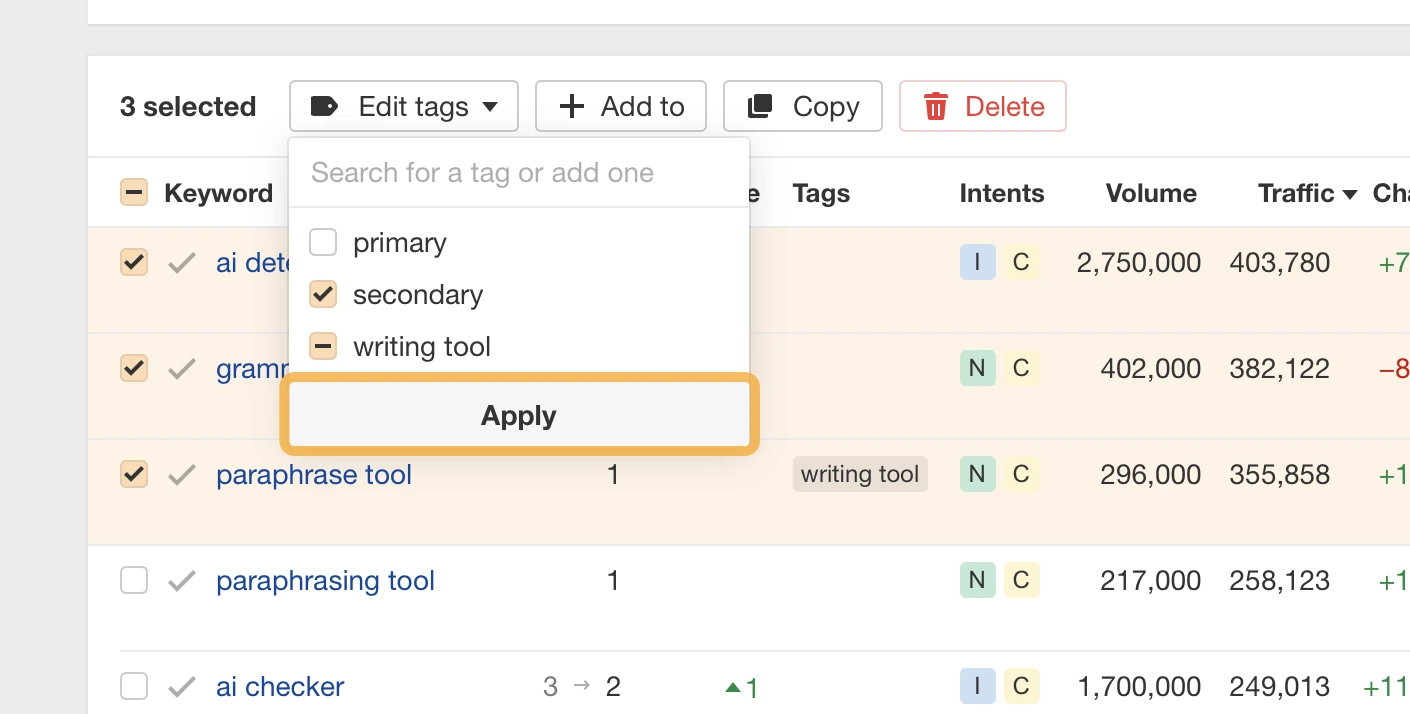
The visible interface shows three selected keywords and the tag editor, including the add and Apply controls. Screenshot source Add the tag and apply it
For a new tag, choose `Add [New tag]`, with the label reflecting the name you entered. Then choose `Apply` to attach the tag to the selected keywords.
Take a moment to check the selection before applying. A tag is useful only if it describes the keywords it is attached to.
Review the tagged group
Open the `Tags` tab in the Rank Tracker Overview report. Find the tag you just applied and review its consolidated performance.
The report can show measures such as Share of Voice, average position, and search traffic with changes. Use the displayed measures to understand how the tagged group is performing together.
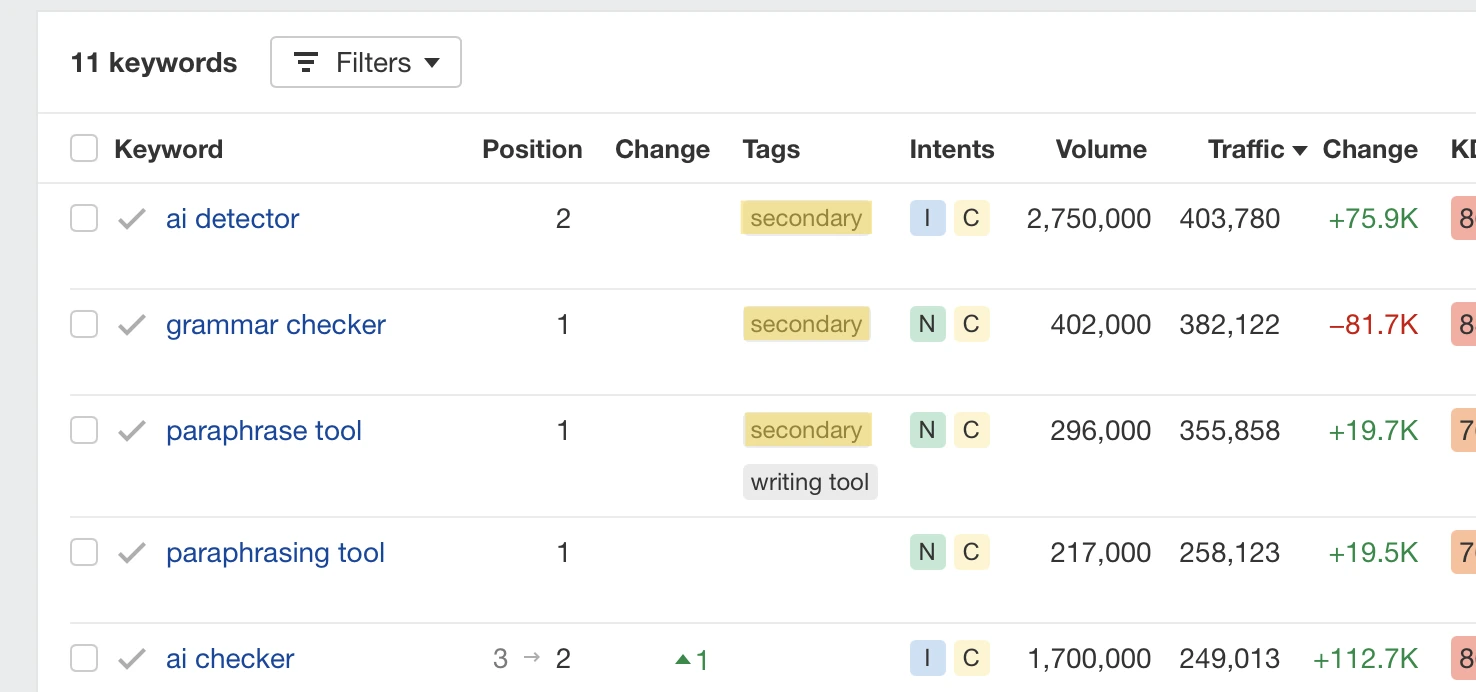
The visible table shows tags associated with keyword rows. Screenshot source
How does this Ahrefs setup work in practice?
Worked example: grouping related software feature keywords into a tracking tag
A content marketing strategist groups newly targeted product feature keywords in Ahrefs Rank Tracker to monitor segment performance against core benchmarks.
| Choice | Why it matters | How to check |
|---|---|---|
| Select the three relevant keyword rows. | The tag should cover only the keywords you want to review as one group. | The selection count shows three and the visible rows are the intended keywords. |
| Create a descriptive tag such as “writing tool”. | A topic label makes the group easy to identify later. | The tag editor shows the intended name before adding it. |
| Choose Add [New tag], then Apply. | Adding creates the label and Apply attaches it to the selected rows. | The new tag appears alongside those keywords. |
| Open Tags and inspect the group measures. | The consolidated view helps you review the selected group together. | The tag and its available performance measures are visible. |
Open the Tags reporting tab in Ahrefs to confirm all selected terms populate the cluster and display combined average ranking metrics.
How do you verify your result in Ahrefs?
You have labeled a set of tracked keywords and can return to the Tags tab to review the group's combined performance. The tag organizes keywords for analysis. It does not by itself explain why a metric changed.
| Step | What you should see |
|---|---|
| Open the project's keyword list | The intended project is open and the Keywords table shows the keywords you want to group. |
| Select the keywords | The selected count and highlighted rows match the group you intend to label. |
| Open tag editing | The editor is open for the selected keywords, and the new tag name or existing tag is ready to apply. |
| Add the tag and apply it | The editor closes or confirms the change, and the tag appears beside the selected keywords. |
| Review the tagged group | The tag is listed and its consolidated performance is visible. |
Related Ahrefs guides include Ahrefs Link Intersect guide and Find broken internal links in Ahrefs Site Audit.
Which official Ahrefs sources were checked?
Every step and limit in this Ahrefs guide was verified against official documentation on 21 Nov 2026 following how we check figures, alongside more walkthroughs in our Ahrefs tutorials hub:
How do you troubleshoot common Ahrefs issues?
Why don't I see the tag beside a keyword?
The tag may not have been applied to that row. Recheck the selected keywords, use Edit tags, and apply the intended tag. Confirm that it appears beside the row afterward.
Why is the tag missing from the Tags tab?
The tag may not have been added or applied successfully. Return to the Keywords table, inspect the selected rows, and repeat the add and Apply actions if necessary.
Why does the tagged group's performance look different from one keyword's result?
The Tags tab presents consolidated performance for keywords under the tag. Open the keyword rows to inspect individual entries, then compare those with the group view.
 Reviewed byDanny Kirk
Founder of ReddiReach.
 Checked byAndrés Felipe
Digital designer and marketer.
Every figure is checked against the vendor's own page. Read our editorial standards.