
Key Takeaways
- Manage site workflows from the Automations dashboard and connect triggers, conditions, and multiple actions in the automations builder.
- Install relevant Wix apps (like Wix Blog, Wix Restaurants, Wix Invoices, or Wix Chat) first so their triggers become available.
- Audit prebuilt app flows, choose an app and trigger in the builder, attach conditions and actions, and monitor runs and email metrics.
- Verify execution status in the run log and review email statistics on any workflow using a Send an Email action.
You can build app-driven workflows in Wix Automations to send targeted emails, chat replies, discount coupons, or loyalty points whenever visitors interact with your site. Teams combine the automations builder, run log, and email statistics to run multi-action flows and track every execution from one dashboard.
For plan limits and team seat pricing behind this workflow, read our Wix review or connect Wix to AI agents in Wix API and MCP.
Key steps
What do you need before starting in Wix?
Wix requires the following workspace setup before you begin:
- Access to the Automations dashboard in your Wix site workspace
- Installed Wix site apps (such as Wix Blog, Wix Restaurants, Wix Invoices, Wix Chat, forms, bookings, or stores) for your target triggers
- Prepared email copy, coupon offers, or chat messages for downstream actions
How do you complete the steps in Wix?
Follow these 4 steps in Wix in order:
Audit prebuilt workflows in the Automations dashboard
Open your Wix Automations dashboard to view and manage site workflows in one place. Inspect the Installed for you tab and recommended automations, which grow automatically as you add apps to your site.
Checking Installed for you first prevents duplicate messages when site apps like bookings, forms, or stores already enable default thank-you or reminder flows.
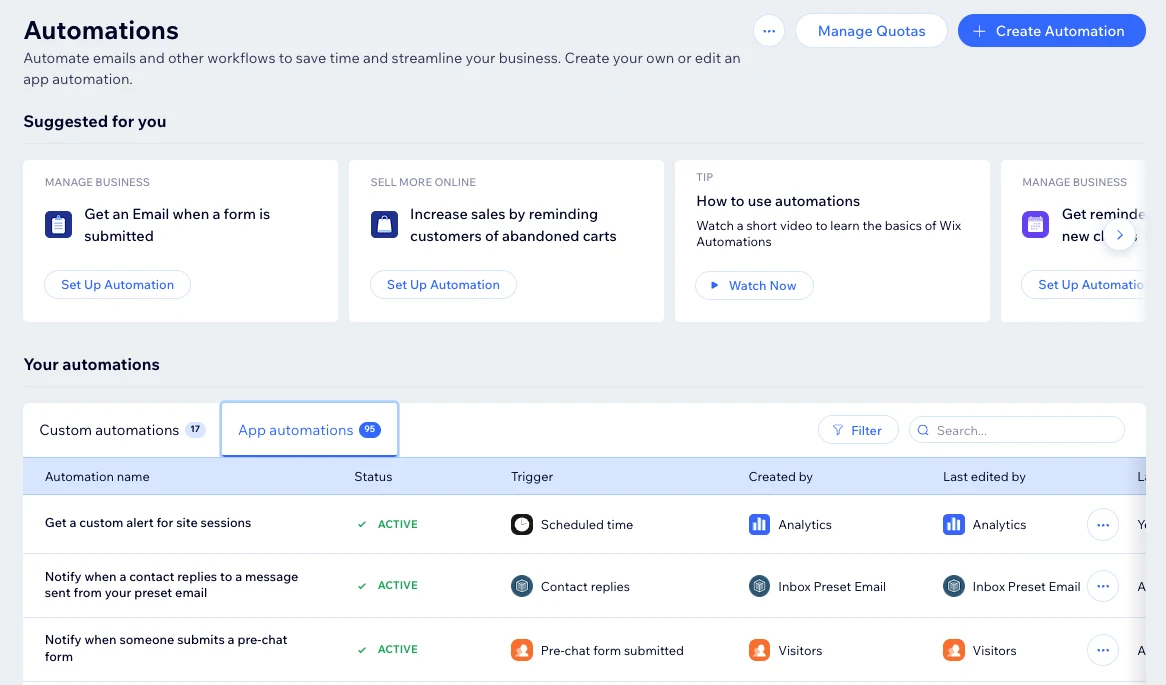
Check the Installed for you tab on the Automations dashboard to review workflows added by site apps. Screenshot source Select a site app and trigger in the automations builder
Open the automations builder and use the trigger settings panel to choose an installed app such as Wix Blog, Wix Restaurants, Wix Invoices, Wix Chat, or forms. Select your specific trigger from that app's options, such as a form submission, abandoned cart, overdue invoice, or restaurant order.
Trigger choices depend on the app you select, and downstream action choices depend on that selected trigger. Install missing site apps first if an expected trigger is absent.
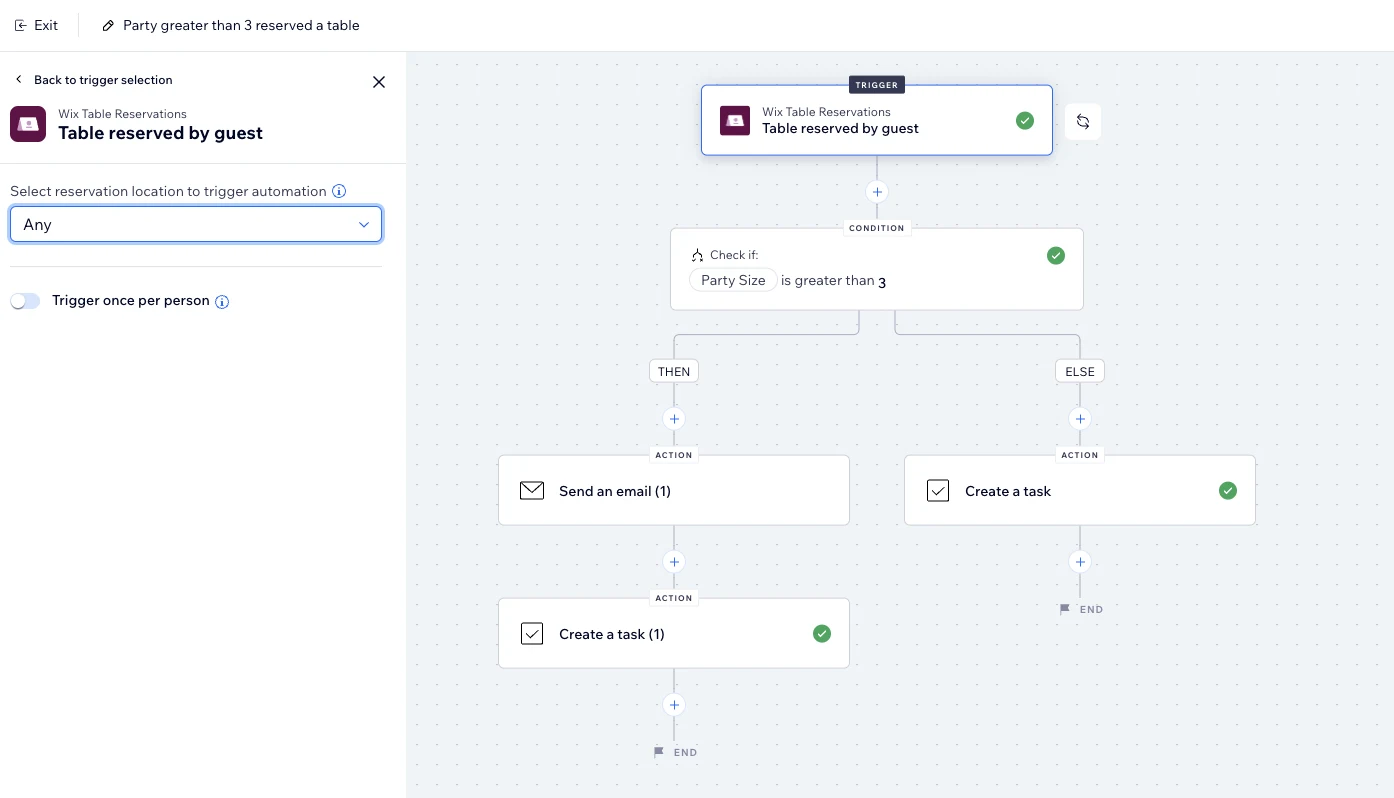
Use the trigger settings panel on the right to choose your site app and specific trigger. Screenshot source Add conditions and chain actions like Send an Email
Below your trigger, add a condition to filter events and connect one or multiple actions to complete your flow. Choose trigger-compatible actions such as Send an Email (for welcome emails, booking reminders, overdue invoice notices, or lead drip campaigns), Wix Chat messages, abandoned-cart coupons, or Wix Restaurants loyalty points.
Chaining multiple actions lets one visitor action trigger both an instant chat message and a structured follow-up email.
Track executions in the run log and email statistics
After live site events fire your workflow, open the run log from the Automations dashboard to see each run's status, performance, and any issues encountered. For workflows with a Send an Email action, inspect email statistics to measure delivery success rate and recipient interaction.
Reviewing the run log early catches configuration issues fast, while email statistics guide subject and copy improvements.
How does this Wix setup work in practice?
Worked example: Following up on form leads with chat and email
A fitness studio wants every visitor submitting an inquiry form to receive an instant chat confirmation plus a trackable welcome email.
| Choice | Why it matters | How to check |
|---|---|---|
| Check the Installed for you tab in the Automations dashboard first | Ensures forms or Wix Chat did not already activate a duplicate submission email. | No overlapping form-submission automations are active. |
| Pick the form trigger in the trigger settings panel and chain Wix Chat plus Send an Email | Sends both a real-time chat reply and a welcome email from one submission. | Both action blocks appear beneath the trigger and condition. |
| Inspect the run log and email statistics after test submissions | Verifies clean execution and tracks email delivery and recipient interaction. | The run log shows succeeded runs and email statistics populate. |
New leads receive coordinated chat and email follow-ups automatically, and the studio checks email statistics weekly.
How do you verify your result in Wix?
Verify your workflow by triggering a test event on your site and checking the run log on the Automations dashboard for a clean run status. Next, review email statistics on Send an Email actions and evaluate newly recommended automations as you add site apps.
| Step | What you should see |
|---|---|
| Audit prebuilt workflows in the Automations dashboard | The Automations dashboard displays your active, recommended, and Installed for you workflows. |
| Select a site app and trigger in the automations builder | Your chosen app trigger appears at the top of the canvas and unlocks matching actions. |
| Add conditions and chain actions like Send an Email | The builder canvas connects your trigger, condition, and ordered action blocks cleanly. |
| Track executions in the run log and email statistics | The run log records completed runs, and Send an Email flows display delivery and interaction metrics. |
Related Wix guides include How to add and set up a custom Wix Forms form in Wix and How to set up 301 redirects and domain forwarding in Wix.
Which official Wix sources were checked?
Every step and limit in this Wix guide was verified against official documentation on 27 Nov 2026 following how we check figures, alongside more walkthroughs in our Wix tutorials hub:
How do you troubleshoot common Wix issues?
Why are expected triggers or actions missing in Wix Automations?
Triggers depend on the apps added to your Wix site (such as Wix Blog, Wix Restaurants, Wix Invoices, or Wix Chat), and actions depend on your chosen trigger. Install the required app first, select it in the trigger settings panel, and then select its trigger.
Where can I see whether a triggered automation ran into an issue?
Each time an automation triggers, Wix logs the run in the run log. Open the run log to check the status of each run, how it performed, and whether any issues occurred.
Which Wix automations provide delivery and engagement analytics?
Every automation that includes a Send an Email action reports email statistics. Use those metrics to monitor email success rates and recipient interactions.
 Reviewed byDanny Kirk
Founder of ReddiReach.
 Checked byAndrés Felipe
Digital designer and marketer.
Every figure is checked against the vendor's own page. Read our editorial standards.