
Key Takeaways
- Combine URL Redirect Manager 301 rules with Domains secondary forwarding to migrate legacy domain traffic to Wix.
- Upgrade your Wix site and connect your primary custom domain first, because free Wix URLs cannot be redirected.
- Open URL Redirect Manager, save relative path redirects, connect your old domain to Wix, and assign it to redirect to your primary domain.
- Confirm your path mappings appear in Your Redirects and your old domain no longer reads Not Assigned to a Site in Domains.
You can pair page-level 301 redirects with secondary domain forwarding in Wix so visitors, search engines, and AI engines citing cached old URLs reach the right pages on your new site. Web teams use this migration workflow to preserve SEO equity and referral traffic without broken links.
For plan limits and team seat pricing behind this workflow, read our Wix review or connect Wix to AI agents in Wix API and MCP.
Key steps
What do you need before starting in Wix?
Wix requires the following workspace setup before you begin:
- An upgraded Wix site with your new primary custom domain connected (free Wix URLs cannot redirect)
- Ownership and registrar DNS access for the legacy domain you want to forward
- A mapping list of old relative URL paths (like /about-us) and matching new Wix page slugs
How do you complete the steps in Wix?
Follow these 4 steps in Wix in order:
Open URL Redirect Manager from your SEO Dashboard
Open your Wix SEO Dashboard, scroll to Tools and settings, and click Go to URL Redirect Manager. Click + New Redirect and select Single redirect.
Creating page-level 301 rules before forwarding your old domain ensures deep links, bookmarks, and cached search or AI citations resolve to matching new pages.
Map legacy URL paths to new page slugs and save
Under Old URL, enter only the relative path you are redirecting from, such as /about-us. Type your new Wix page's URL slug and pick it from the drop-down (or enter a full URL for external destinations), then click Save or Save & Add Another.
Use Save & Add Another to batch high-traffic pages quickly. Review saved entries in Your Redirects, where hovering reveals the Edit button for quick updates.
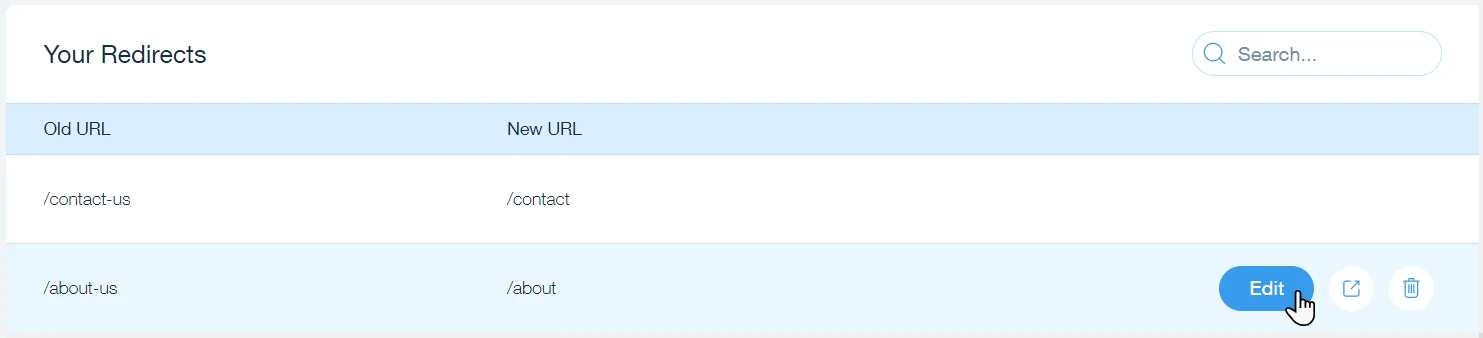
Verify your saved 301 path mappings in the Your Redirects list or hover to click Edit. Screenshot source Connect your old domain to your Wix account
Go to Domains in your Wix account, click Add an Existing Domain, and select Connect a domain you already own. Pick your target site, click Continue, enter your old domain in the search bar, click the arrow icon, and click connect it to your site below the search field.
Follow the on-screen prompts in the domain connection assistant. Provider steps vary by registrar, so keep your DNS dashboard open until connection setup completes.
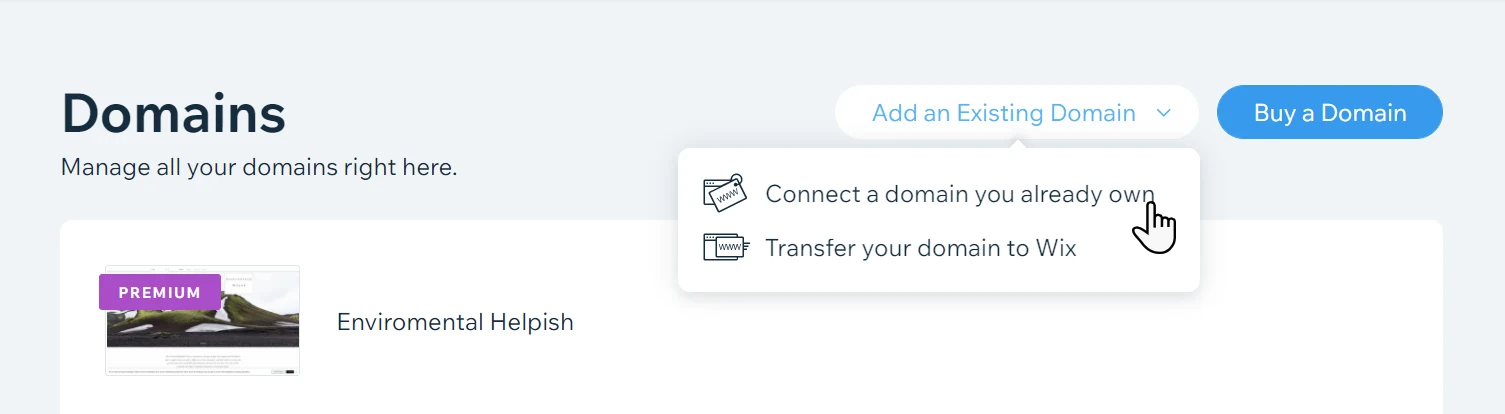
Select Connect a domain you already own to start linking your legacy domain to Wix. Screenshot source Assign the secondary domain to redirect to your primary domain
Return to Domains, scroll to your newly added old domain, and click Assign next to Not Assigned to a Site. Select your Wix site, click Next, choose Redirect it to the primary domain, and click Assign.
Choosing Redirect it to the primary domain links root forwarding with the relative 301 rules you configured in URL Redirect Manager.
How does this Wix setup work in practice?
Worked example: Forwarding a rebranded domain to a new Wix site
A consulting agency rebrands onto a new primary domain on Wix and wants traffic from its legacy domain's /services and /about-us URLs forwarded seamlessly.
| Choice | Why it matters | How to check |
|---|---|---|
| Add Single redirect rules for /services and /about-us in URL Redirect Manager | Maps relative legacy paths to matching new Wix slugs ahead of domain cutover. | Both rules appear in Your Redirects with Edit controls. |
| Connect legacy domain via Domains > Add an Existing Domain > Connect a domain you already own | Brings the external legacy domain into the Wix account through the connection assistant. | The legacy domain is listed under Wix Domains. |
| Click Assign beside Not Assigned to a Site and pick Redirect it to the primary domain | Activates domain-wide forwarding from the secondary domain to the new primary domain. | Domains shows the legacy domain redirecting to the primary domain. |
Once DNS updates propagate, visiting the old root domain or /about-us lands visitors directly on the corresponding new Wix page.
How do you verify your result in Wix?
Verify your migration in Domains by confirming the old domain redirects to your primary domain and checking Your Redirects in URL Redirect Manager for accurate destination slugs. Next, test legacy URLs in a browser to confirm clean 301 resolution.
| Step | What you should see |
|---|---|
| Open URL Redirect Manager from your SEO Dashboard | The Single redirect setup panel opens inside URL Redirect Manager. |
| Map legacy URL paths to new page slugs and save | Each saved path rule appears in the Your Redirects list. |
| Connect your old domain to your Wix account | Your old domain appears in the Domains list of your Wix account. |
| Assign the secondary domain to redirect to your primary domain | The Not Assigned to a Site status disappears and the old domain redirects to your primary domain. |
Related Wix guides include How to add and set up a custom Wix Forms form in Wix and How to build and track workflows with Wix Automations in Wix.
Which official Wix sources were checked?
Every step and limit in this Wix guide was verified against official documentation on 27 Nov 2026 following how we check figures, alongside more walkthroughs in our Wix tutorials hub:
How do you troubleshoot common Wix issues?
Can I redirect traffic from a free Wix URL to another domain?
No, Wix does not allow redirecting from a free Wix URL. You must first upgrade your Wix site and connect a custom domain to set up domain forwarding.
Should I enter the full legacy domain in the Old URL field?
No, type only the relative path such as /about-us under Old URL. Wix pairs that path with your legacy domain automatically once you connect and assign it in Domains.
Why does my connected legacy domain still show Not Assigned to a Site?
Connecting an existing domain does not automatically set its forwarding behavior. Open Domains, click Assign beside Not Assigned to a Site, choose your site, and select Redirect it to the primary domain.
 Reviewed byDanny Kirk
Founder of ReddiReach.
 Checked byAndrés Felipe
Digital designer and marketer.
Every figure is checked against the vendor's own page. Read our editorial standards.