
Key Takeaways
- Add custom line items or product catalog entries in HubSpot Sales Hub to detail individual components of an active deal.
- Confirm your HubSpot user account has permission to edit deals and manage custom line items or read the product library.
- Work through five defined stages to select items, configure pricing terms, review billing calculations, and choose total amount synchronization.
- Review the Line Items pane on the HubSpot deal record to verify item pricing, billing frequency, and updated deal totals.
Attach products or custom line items to an existing HubSpot deal to track itemized service and software sales. Review calculated totals and choose whether HubSpot should automatically sync the total deal amount upon saving.
For plan limits and team seat pricing behind this workflow, read our HubSpot Sales Hub review or connect HubSpot Sales Hub to AI agents in HubSpot Sales Hub API and MCP.
Key steps
What do you need before starting in HubSpot Sales Hub?
HubSpot Sales Hub requires the following workspace setup before you begin:
- An existing deal you can edit.
- Create custom line items permissions if adding a new line item that is not associated with the product library.
- The intended product, unit price, quantity, billing frequency, and any applicable tax or discount details.
How do you complete the steps in HubSpot Sales Hub?
Follow these 5 steps in HubSpot Sales Hub in order:
Open the deal’s line item editor
In HubSpot, go to CRM > Deals and open the deal. In the right panel, find the Line items card. Click Add if the deal has no line items, or Edit to change existing ones. The editor displays up to 200 associated line items.
Select products or prepare a custom item
In the editor’s right panel, search the product library by product name, description, or SKU. Use Advanced filters if you need to refine the search. Select the checkbox beside each product to add and click Add. Selecting a product for this deal does not change the product library. If you are creating a new line item outside the library, the required permission is Create custom line items.
Enter the line item details
Under Line item information, enter the item details. Under Price, select the pricing model and enter unit price, quantity, and unit cost. Set a billing frequency if needed. If your account has tax rates configured, choose one under Tax rate. Use the save-to-library checkbox only if you intend to add a custom line item to the product library.
Review calculations and summary
Review the calculations above the editor, including the deal amount and available recurring or contract metrics. They depend on the line item details and the default deal amount selected in account settings. In the separate screenshot example, visible sample values include TCV US$26,000.00 and MRR US$500.00. These are screenshot data only, not a forecast or expected result for your deal. Review the summary to understand amounts due at checkout, future payments, and total contract value.
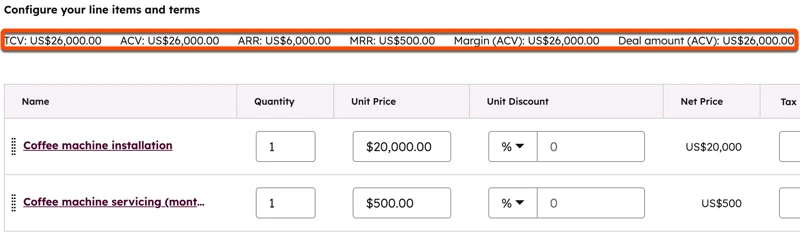
The visible calculation area shows example metrics and values derived from the displayed line items. Screenshot source Save and choose whether the deal amount updates
Click Save. When the confirmation appears, choose whether to update the deal amount to reflect the line items or save the line items without updating the amount. The screenshot shows this confirmation with Update deal amount and Save without updating. Select the option that matches how your team maintains deal amounts.
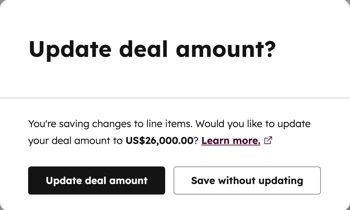
The save dialog exposes the choice to update the deal amount or save line items without changing it. Screenshot source
How does this HubSpot Sales Hub setup work in practice?
Worked example: add a service item and preserve the intended deal total
A sales representative adds fixed installation services and monthly maintenance items to an existing HubSpot deal record.
| Choice | Why it matters | How to check |
|---|---|---|
| Open the intended deal and select Add or Edit | Line items are managed from the deal’s Line items card. | The editor is open for the correct deal. |
| Select the existing installation product | Using an existing product library entry avoids creating a duplicate custom item. | The installation product appears in the editor. |
| Enter the servicing price and billing details | The unit price and billing frequency determine the values shown in the calculation summary. | The item details match the hypothetical quote being prepared. |
| Review the confirmation before choosing the amount behavior | The team wants to save the item configuration while retaining a separately managed deal amount in this scenario. | Select Save without updating only if that reflects the team’s chosen accounting of the deal amount. |
The deal reflects the saved line items, allowing the representative to generate a quote or payment link directly from the record.
How do you verify your result in HubSpot Sales Hub?
The deal now has the line items you selected or configured. If you chose to update the deal amount, HubSpot updates it to reflect the new line items. Otherwise, the line items are saved while the existing deal amount is retained. Interpret the displayed metrics using the item prices, billing frequency, term, and account’s default deal amount setting.
| Step | What you should see |
|---|---|
| Open the deal’s line item editor | The line item editor is open for the intended deal. |
| Select products or prepare a custom item | The products you intend to include appear in the editor, or the custom line item fields are ready for entry. |
| Enter the line item details | Names, quantities, prices, billing frequency, and any selected tax or discount details match the deal you intend to record. |
| Review calculations and summary | The displayed calculations and summary are consistent with the details entered and the billing timing you intended. |
| Save and choose whether the deal amount updates | The confirmation closes and the saved line items appear on the deal. Verify the deal amount reflects your selected save option. |
Related HubSpot Sales Hub guides include How to add a deal to a HubSpot Sales Hub pipeline and How to associate an existing contact with a deal in HubSpot.
Which official HubSpot Sales Hub sources were checked?
Every step and limit in this HubSpot Sales Hub guide was verified against official documentation on 21 Nov 2026 following how we check figures, alongside more walkthroughs in our HubSpot Sales Hub tutorials hub:
How do you troubleshoot common HubSpot Sales Hub issues?
Why did adding a line item not update the deal amount?
At save time, HubSpot asks whether to update the deal amount or save without updating it. Select Update deal amount if the deal amount should reflect the new line items.
Why can’t I create a custom line item?
Creating a new line item that is not associated with the product library requires Create custom line items permissions. Confirm that permission or select an existing library product.
Why don’t I see a tax rate option?
Tax rates must be set up in the tax library. The source also notes that Tax rate is turned off when QuickBooks Online is connected, to prevent sync conflicts. Check which condition applies to your account.
 Reviewed byDanny Kirk
Founder of ReddiReach.
 Checked byAndrés Felipe
Digital designer and marketer.
Every figure is checked against the vendor's own page. Read our editorial standards.