
Key Takeaways
- Linking an existing contact to a deal in HubSpot Sales Hub creates a two-way association visible in the right sidebar of both records.
- Managing deal and contact associations in HubSpot requires Super Admin permissions or the Edit associations permission on your user account.
- HubSpot association limits depend on your subscription tier, and assigning association labels during setup requires a Professional or Enterprise subscription.
- Confirm the completed HubSpot relationship in the deal's Contacts sidebar card and the contact's sidebar, rather than the historical association history view.
Associate an existing contact with a deal in HubSpot by opening the deal record, selecting **+Add contact** on the **Contacts** card in the right sidebar, checking the matching contact, and clicking **Save**. Because HubSpot associations are two-way, saving connects both records immediately so users can view the relationship from either sidebar.
For plan limits and team seat pricing behind this workflow, read our HubSpot Sales Hub review or connect HubSpot Sales Hub to AI agents in HubSpot Sales Hub API and MCP.
Key steps
What do you need before starting in HubSpot Sales Hub?
HubSpot Sales Hub requires the following workspace setup before you begin:
- Access to the HubSpot account and the specific deal record you want to update.
- Super Admin permissions or the Edit associations permission assigned to your user profile.
- The existing contact's name or identifying details to locate the right record, keeping in mind that association limits depend on your subscription.
How do you complete the steps in HubSpot Sales Hub?
Follow these 5 steps in HubSpot Sales Hub in order:
Open the deal record
Navigate to the deal record you want to update in HubSpot and open it. Verify identifying details like the deal title and amount first. If you are viewing the deal's association history screen, return to the main deal record, since association history shows past updates rather than the contact selection form.
Locate the Contacts association card
In the deal record's right sidebar, find the Contacts association card and select +Add contact. This label may use a personalized object name configured in your account. If the Contacts card is not shown, customize the right sidebar layout or ask an administrator to display it.
Search for the existing contact
Search for the existing contact record using the person's name or identifying details, then select its checkbox in the results. Check the displayed identity closely when multiple contacts share similar names. Select the matching existing record rather than creating a new contact.
Review and save the association
Confirm the selected contact and, if shown in your account, complete any association-label step. Applying association labels requires a Professional or Enterprise subscription. Select Save to finish. Because HubSpot associations are two-way, the relationship becomes visible from each record.
Verify the relationship from the records
Check the Contacts card on the deal record, and if needed open the contact record to verify the deal appears in its right sidebar too. Keep in mind that a deal's association history is a separate view for historical changes, including entries marked Object deleted, not for adding contacts.
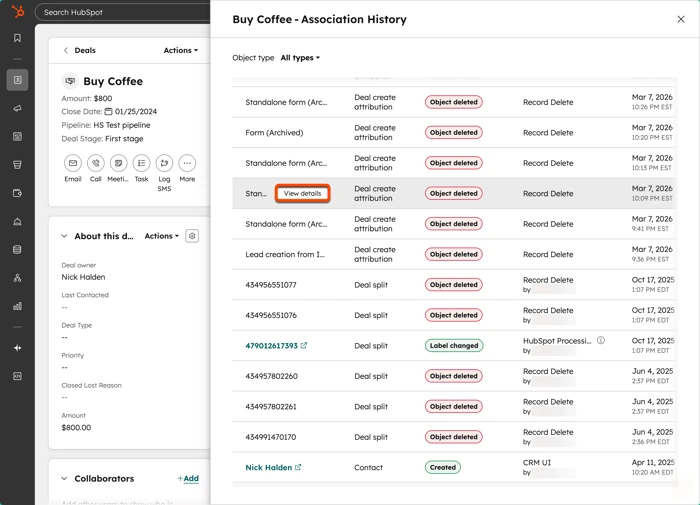
This screenshot shows historical association details on a deal, not the add-contact picker. Use the deal's Contacts card to add an existing contact. Screenshot source
How does this HubSpot Sales Hub setup work in practice?
Example: linking an existing buyer contact to a renewal deal
A sales rep managing an annual software renewal in HubSpot Sales Hub needs to connect the customer's existing procurement buyer to the active renewal deal record.
| Choice | Why it matters | How to check |
|---|---|---|
| Open the renewal deal using its title and deal amount. | Confirming identifying details first prevents editing an older deal for the same account. | Visible deal details match the active renewal purchase. |
| Select +Add contact in the Contacts sidebar card and search for the buyer. | Connecting the existing contact preserves full communication history on one record. | The search result matches the existing buyer's identity. |
| Verify the selected contact checkbox before clicking Save. | A final check avoids linking a similarly named contact in the database. | Only the intended existing buyer contact is checked. |
| Inspect the Contacts card on the deal sidebar after saving. | The right sidebar confirms the two-way association was recorded properly. | The buyer contact appears in the deal's Contacts card. |
Next, the rep decides whether additional stakeholders involved in the renewal purchase should also be associated with the deal.
How do you verify your result in HubSpot Sales Hub?
The deal is linked to the existing contact in HubSpot, and the two-way association appears in each record's right sidebar so reps can review the relationship from either record. Historical entries in the deal's association history view, including items marked Object deleted, remain separate audit records and are not used to create new associations.
| Step | What you should see |
|---|---|
| Open the deal record | The open record matches the intended deal's title and details. |
| Locate the Contacts association card | The contact association picker opens from the deal's Contacts card. |
| Search for the existing contact | The checkbox is selected for the intended existing contact record. |
| Review and save the association | The deal record displays the selected contact in its Contacts association card. |
| Verify the relationship from the records | Both records list each other as associated with no unintended contact selected. |
Related HubSpot Sales Hub guides include How to add a deal to a HubSpot Sales Hub pipeline and How to add line items to a deal in HubSpot.
Which official HubSpot Sales Hub sources were checked?
Every step and limit in this HubSpot Sales Hub guide was verified against official documentation on 21 Nov 2026 following how we check figures, alongside more walkthroughs in our HubSpot Sales Hub tutorials hub:
How do you troubleshoot common HubSpot Sales Hub issues?
Why can I not add the contact?
Managing associations requires Super Admin or Edit associations permission in HubSpot. Ask an account administrator to check your permissions if +Add contact is unavailable.
Why is the Contacts card missing?
The deal record's right sidebar can be customized, so the card may be hidden. Check the sidebar configuration or ask an administrator to restore the Contacts card.
Why do I see association history instead of the contact picker?
Association history only logs historical changes, such as entries marked Object deleted. Return to the deal record's right sidebar and select +Add contact on the Contacts card.
 Reviewed byDanny Kirk
Founder of ReddiReach.
 Checked byAndrés Felipe
Digital designer and marketer.
Every figure is checked against the vendor's own page. Read our editorial standards.