
Key Takeaways
- Navigate to CRM > Deals in HubSpot Sales Hub, hover over your target pipeline column in Board view, and create a fully attributed deal record.
- Verify you have access to the HubSpot CRM Deals index and assemble the required deal name, stage, expected close date, and associated contact records.
- Follow the 4-step procedure by opening the deals board, selecting the target stage column, completing deal property fields, and associating relevant CRM records.
- Verify record creation by confirming the new deal card appears in the intended board column and opening it to review associated contacts and companies.
Add a new deal directly to a pipeline board in HubSpot Sales Hub to track qualified opportunities across structured sales stages. Assigning deal values and associating contact records immediately ensures accurate pipeline forecasting and clear team ownership.
For plan limits and team seat pricing behind this workflow, read our HubSpot Sales Hub review or connect HubSpot Sales Hub to AI agents in HubSpot Sales Hub API and MCP.
Key steps
What do you need before starting in HubSpot Sales Hub?
HubSpot Sales Hub requires the following workspace setup before you begin:
- Access to the HubSpot CRM > Deals index page.
- Know the deal name and target pipeline stage. Have any amount, close date, contact, or company details you want to add ready.
How do you complete the steps in HubSpot Sales Hub?
Follow these 4 steps in HubSpot Sales Hub in order:
Open the deals board
In HubSpot, click More > CRM > Deals. In the upper right, open the view type dropdown and choose Board view. The board displays deals in columns by stage.
Choose the stage for the new deal
Find the stage where you want the deal to start, hover over that column, and click Create deal. HubSpot opens a creation panel and fills in the pipeline and deal stage by default. For example, choose your first qualification stage when a prospect has just agreed to a discovery call.
Before choosing a stage, match it to the prospect’s current status in your team’s sales process. For example, a scheduled discovery call may fit an early qualification stage, while a prospect who has already completed that call may belong later. If the board has multiple pipelines, confirm the pipeline as well as the stage before creating the deal.
Enter the deal details
In the panel, enter the deal’s property values, including its name and any useful amount or close date. Review the automatically selected pipeline and stage before continuing. If the deal belongs in a different pipeline, correct the pipeline and stage in the form before you save the deal.
Use a deal name that your team can recognize in search and on the board, such as the company name plus the purchase or project. If the amount or close date is still uncertain, avoid treating an estimate as a commitment. Use a value only if your team’s process allows estimates, and confirm how those properties will be interpreted in reporting.
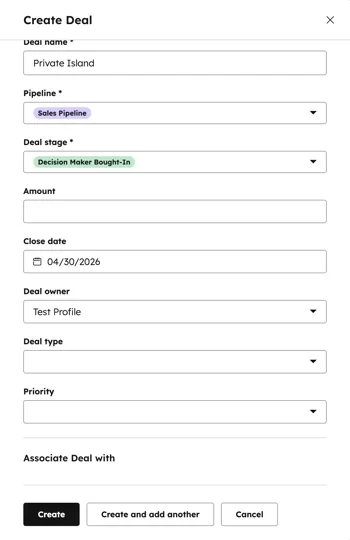
Review the deal’s pipeline and stage, then enter its relevant details. Screenshot source Associate related records and create it
Under Associate deal with, search for and select the contact or company involved. If useful, use Add a line item to find a product, or select Add timeline activity to bring relevant logged activity from an associated record onto the deal. Click Create when the details are ready.
Choose the contact and company that represent this specific opportunity, especially when a person is associated with more than one organization. After creation, open the deal and verify the associations there. Add a line item only when you know which product or service belongs to the opportunity. Adding one can make the deal more informative, but a premature selection may misstate what is being sold.
How does this HubSpot Sales Hub setup work in practice?
Worked example: creating a deal for a newly qualified prospective client
A sales representative schedules an introductory discovery call with a healthcare clinic evaluating subscription software and needs a structured pipeline record to track upcoming qualification milestones.
| Choice | Why it matters | How to check |
|---|---|---|
| Select the pipeline used for new business, then choose its first qualification stage. | The discovery call is scheduled but has not happened, so a later stage could overstate progress. | The creation panel shows the intended pipeline and stage. |
| Name the deal “Northstar Clinic | Software subscription.” | The company and purchase are identifiable when multiple deals appear on the board. | The name is specific enough to distinguish this opportunity from other Northstar Clinic deals. |
| Leave amount and close date unset if they are not known and the team permits blank values. | An invented estimate can distort forecasts or reports. A date should reflect a defensible expectation. | The form has no guessed values, or contains clearly team-approved estimates. |
| Associate the clinic’s relevant contact and company. | The opportunity can then be reviewed alongside the people and organization involved. | Open the created deal and confirm both associations are correct. |
Confirm the deal card is visible in the qualification column with associated contact records intact, ready for updates after concluding the discovery meeting.
How do you verify your result in HubSpot Sales Hub?
Confirm the deal name is visible as a card in the intended pipeline stage. Open the card to review its amount, close date, and associations, then use it to track the next sales activity.
| Step | What you should see |
|---|---|
| Open the deals board | The Deals page shows pipeline stages as board columns. |
| Choose the stage for the new deal | The creation panel has the intended pipeline and deal stage selected. |
| Enter the deal details | The form contains the deal name and the correct pipeline and stage. |
| Associate related records and create it | The new deal card appears in the chosen stage column. |
Related HubSpot Sales Hub guides include How to add line items to a deal in HubSpot and How to associate an existing contact with a deal in HubSpot.
Which official HubSpot Sales Hub sources were checked?
Every step and limit in this HubSpot Sales Hub guide was verified against official documentation on 21 Nov 2026 following how we check figures, alongside more walkthroughs in our HubSpot Sales Hub tutorials hub:
How do you troubleshoot common HubSpot Sales Hub issues?
Why can’t I find the Create deal control?
Make sure you are on CRM > Deals and have selected Board view. The create control appears when you hover over a stage column.
Can I link the deal to a contact or company while creating it?
Yes. In the creation panel, search under Associate deal with and select existing records. You can also add a line item when relevant.
The deal was created, but it is in the wrong stage or pipeline. What should I check?
Open the deal and review its pipeline and deal stage. If either is wrong, change it to the team’s intended values, then return to the board and confirm the card appears in the expected column.
 Reviewed byDanny Kirk
Founder of ReddiReach.
 Checked byAndrés Felipe
Digital designer and marketer.
Every figure is checked against the vendor's own page. Read our editorial standards.