
Key Takeaways
- Activate domain matching in HubSpot Sales Hub within company object settings to associate contacts automatically with related companies.
- Verify you hold administrative account permissions in HubSpot Sales Hub and establish whether existing contacts should be evaluated.
- Complete five sequential configuration steps in HubSpot Sales Hub to enable domain matching, define scope, and add domain exclusions.
- Verify the automation in HubSpot Sales Hub by reviewing newly synced contact records to confirm correct company record linking.
Enable automatic company association settings in HubSpot Sales Hub to link contacts with corresponding company records using email domain matching. Configuring this automation eliminates manual company creation while keeping your CRM database organized.
For plan limits and team seat pricing behind this workflow, read our HubSpot Sales Hub review or connect HubSpot Sales Hub to AI agents in HubSpot Sales Hub API and MCP.
Key steps
What do you need before starting in HubSpot Sales Hub?
HubSpot Sales Hub requires the following workspace setup before you begin:
- Permission to edit account settings.
- Know whether you want the setting to apply to existing contacts or only to contacts added after enabling it.
- If excluding domains, identify the exact domains to exclude. HubSpot supports up to 1,000 excluded domains.
How do you complete the steps in HubSpot Sales Hub?
Follow these 5 steps in HubSpot Sales Hub in order:
Open company object settings
In HubSpot, click the settings icon in the top navigation. In the left sidebar, under Data Management, click Objects. On the Objects page, open Select an object and choose Companies.
Find the automation checkbox
In the Automation section, locate Create and associate companies with contacts. The setting matches a contact’s Email domain with a company’s Company domain name. If the setting is already on, review its current state before making changes.
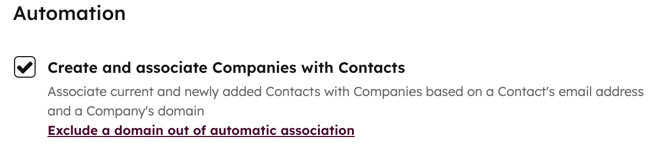
The visible setting is enabled, and Exclude a domain out of automatic association is available beneath it. Screenshot source Enable the setting and choose its scope
Select Create and associate companies with contacts. In the dialog, choose Yes to retroactively create and associate companies for existing contacts, or No to apply the setting only to new contacts. Existing contacts are unaffected by choosing No.
Review domain matching behavior
HubSpot can create a company record when none exists for a matching domain. It treats subdomains as distinct domains. For a contact using a freemail address, HubSpot can also use Website URL to attempt a match. A contact with an existing company association to a different domain is not reassigned by this setting.
Exclude domains if needed
Under the automation checkbox, click Exclude a domain out of automatic association. Enter the domains in Opted out domains and save. To remove an exclusion later, click the X beside the domain and save. If you want a removed domain to be automatically associated moving forward, the source instructions say to turn the setting off and back on.
How does this HubSpot Sales Hub setup work in practice?
Worked example: enabling automatic company matching for new inbound contacts
A sales operations team activates domain-based company associations for incoming leads in HubSpot Sales Hub while preserving existing legacy contact associations during an initial evaluation phase.
| Choice | Why it matters | How to check |
|---|---|---|
| Choose No in the enablement dialog. | This applies the setting only to new contacts, as intended for the scenario. | The checkbox is selected and the dialog choice is No. |
| Review whether incoming contacts have work email domains or useful Website URL values for freemail contacts. | HubSpot matches email domains and may use Website URL for freemail contacts. | The team knows which incoming records have matching data available. |
| Add any domains the team wants excluded to Opted out domains. | Excluded domains are not automatically created or associated in most scenarios. | The saved exclusion list contains the intended exact domains. |
| After new contacts arrive, inspect a sample association and decide whether to keep the setting enabled or manually correct records. | A real record review can reveal whether domain matches fit the team’s data. | The team has checked both the contact association and the corresponding company domain. |
The team validates that new contact submissions link to matching corporate records before choosing whether to apply domain matching retroactively across the entire historical CRM database in HubSpot Sales Hub.
How do you verify your result in HubSpot Sales Hub?
HubSpot will use domain matching for the selected scope. Existing contacts are included only if you chose Yes. A matching domain may lead to automatic association, and a missing company may be created. This does not replace an existing association to a different company, and duplicate companies sharing a domain may mean the selected association is not the one you intended. Review representative contact and company records after enabling the setting.
| Step | What you should see |
|---|---|
| Open company object settings | The Companies object settings are displayed. |
| Find the automation checkbox | You can see the checkbox and confirm whether it is currently selected. |
| Enable the setting and choose its scope | The checkbox is selected, and you have chosen the intended treatment for existing contacts. |
| Review domain matching behavior | You have identified whether your contacts’ email domains and, where relevant, Website URL values support the matching you expect. |
| Exclude domains if needed | The Opted out domains list contains only the domains you intend to exclude, or no exclusions if none are needed. |
Related HubSpot Sales Hub guides include How to add a deal to a HubSpot Sales Hub pipeline and How to add line items to a deal in HubSpot.
Which official HubSpot Sales Hub sources were checked?
Every step and limit in this HubSpot Sales Hub guide was verified against official documentation on 21 Nov 2026 following how we check figures, alongside more walkthroughs in our HubSpot Sales Hub tutorials hub:
How do you troubleshoot common HubSpot Sales Hub issues?
Why did an existing contact keep its current company?
An existing association to a company with a different domain is not overridden. Review the association on the contact and update it manually if needed.
Why was no company matched to a freemail contact?
For freemail addresses, HubSpot uses Website URL to attempt matching. If that property has no value, automatic association does not occur. Add an appropriate Website URL and review the company association.
Why did a contact associate with an unexpected company?
If multiple companies share the same Company domain name, HubSpot automatically associates the contact with only one, and you cannot choose which one through this setting. Review and manually correct the association if needed.
 Reviewed byDanny Kirk
Founder of ReddiReach.
 Checked byAndrés Felipe
Digital designer and marketer.
Every figure is checked against the vendor's own page. Read our editorial standards.