
Key Takeaways
- Build rule-based dynamic audiences under Audience > Lists & segments > Create > Segment manually or with Define with AI.
- Sync customer events to Klaviyo first, and use a paid US-hosted account if generating conditions via Define with AI.
- Open the segment builder, filter top-level event properties, join opt-in consent and exclusions with AND, and save or snapshot.
- Confirm the segment finishes populating under Lists & segments and check sampled profiles against your consent and event rules.
You can build dynamic segments in Klaviyo that automatically add or remove contacts in near real time based on behavior, properties, and predicted value. Marketers use filtered segments to send targeted campaigns to subscribed buyers or VIPs and save static list snapshots when needed.
For plan limits and team seat pricing behind this workflow, read our Klaviyo review or connect Klaviyo to AI agents in Klaviyo API and MCP.
Key steps
What do you need before starting in Klaviyo?
Klaviyo requires the following workspace setup before you begin:
- An active Klaviyo account with synced contact profiles and behavioral metrics such as Placed Order.
- A paid US-hosted Klaviyo account if you plan to generate or edit conditions from text prompts using Define with AI.
How do you complete the steps in Klaviyo?
Follow these 4 steps in Klaviyo in order:
Create a new segment or generate conditions with AI
Navigate to Audience > Lists & segments, click Create in the upper right, and choose Segment. Enter a name (clicking Create segment if using the Create segment panel) to open the builder, or type an audience prompt in the condition selector and select it under Define with AI.
When editing an existing rule via Define with AI, Klaviyo replaces only that condition and keeps other rules intact. Always review generated logic before clicking Update segment.
Filter behavioral events using top-level properties
Select What someone has done (or not done), choose an event like Placed Order, and click the filter icon beside it. Pick a top-level property (Value, Collections / Categories, Item Count, Items, or Source Name), select equals or contains, and enter your value.
Nested fields inside Extra or Details arrays work in email templates but are not segmentable. Event text filters are case sensitive (unlike Email), and for unsynced future product names you can type the exact value and click Create [your value] or click outside a single-value box.
Join conditions with AND or OR and require email consent
Click Add condition (or the Copy icon to clone a rule) and toggle the default OR connector to AND when every rule must hold. Before emailing a segment, join If someone can or cannot receive marketing > can receive > email marketing with AND, then click Add filter and choose Subscribed under because person.
Segments evaluate all account profiles without checking opt-in automatically. Also join negative exclusions such as Country doesn't equal United States and Country doesn't equal Canada using AND rather than OR.
Save the segment and capture optional list snapshots
Click Create segment and allow large audiences time to populate before scheduling a campaign. To freeze current members into a static list later, open the segment, select Manage segment > Create list of current members, enter a List name, and click Create list.
Your original segment continues updating dynamically as profile data changes, while the snapshot list stays static once populated.
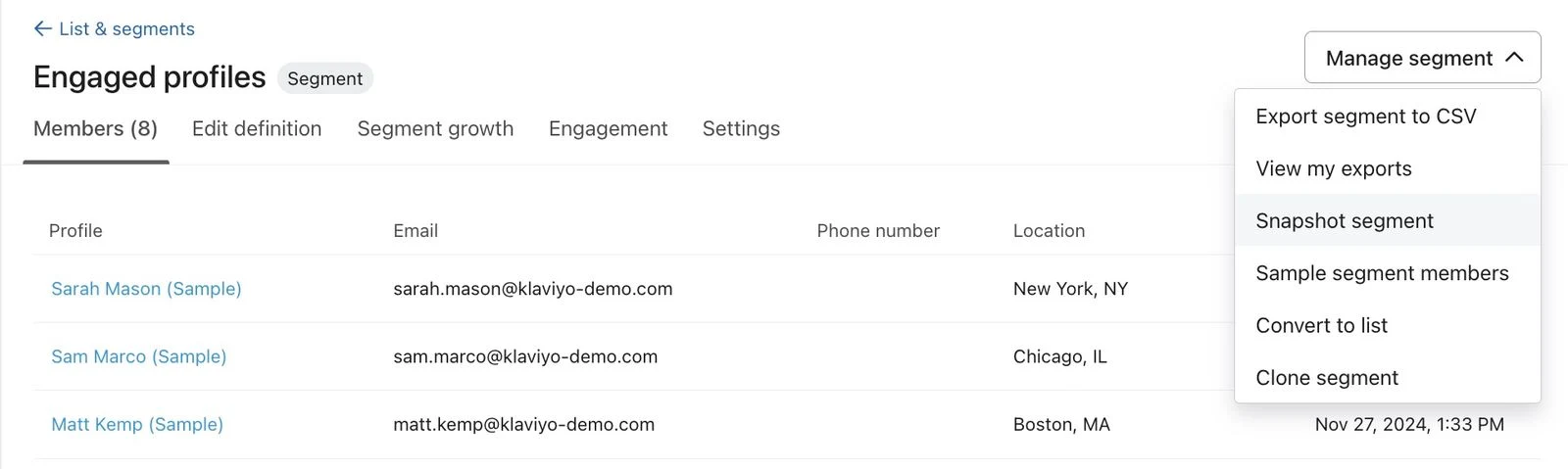
Open the Manage segment dropdown and select Create list of current members to save a static list snapshot of current profiles. Screenshot source
How does this Klaviyo setup work in practice?
Worked example: Subscribed international buyers of a new product
A retail team wants to track and email subscribed buyers outside the US and Canada who order a newly launching rain jacket.
| Choice | Why it matters | How to check |
|---|---|---|
| What someone has done > Placed Order where Items equals Alpine Rain Jacket | Entering the exact pre-launch item string lets buyers qualify immediately once orders sync. | Placed Order rule displays the case-matched Items value. |
| AND can receive > email marketing filtered by because person > Subscribed | Ensures only opted-in email subscribers enter the campaign audience. | Consent rule is linked with AND instead of OR. |
| AND Country doesn't equal United States AND Country doesn't equal Canada | Joining negative exclusions with AND prevents residents of either country from qualifying. | Both country exclusions connect via AND. |
The segment populates automatically as launch orders arrive, and the team uses Manage segment > Create list of current members on Friday to save a static raffle list.
How do you verify your result in Klaviyo?
Check your populated audience under Audience > Lists & segments and open several member profiles to verify they meet your event, exclusion, and consent conditions. Next, target the segment in a campaign send or attach it to a segment-triggered flow.
| Step | What you should see |
|---|---|
| Create a new segment or generate conditions with AI | The segment builder opens with your segment title and either blank or editable AI-generated conditions. |
| Filter behavioral events using top-level properties | Your event condition displays the chosen metric paired with a case-matched top-level property filter. |
| Join conditions with AND or OR and require email consent | All behavioral rules, negative exclusions, and email subscription filters are joined with accurate AND or OR operators. |
| Save the segment and capture optional list snapshots | The dynamic segment finishes calculating its member count, and any snapshot appears as a separate static list. |
Related Klaviyo guides include How to create and publish website sign-up forms in Klaviyo and How to create segment and list-triggered flows in Klaviyo.
Which official Klaviyo sources were checked?
Every step and limit in this Klaviyo guide was verified against official documentation on 27 Nov 2026 following how we check figures, alongside more walkthroughs in our Klaviyo tutorials hub:
How do you troubleshoot common Klaviyo issues?
Why is an event detail missing from the segment property filter list?
Only primary top-level event properties (such as Value or Items on Placed Order) are indexed for segmentation. Fields nested inside Extra or Details arrays can be rendered in email templates, but cannot be used in segment filters.
Why did joining two negative country filters with OR match every contact?
OR requires only one condition to be true, so US contacts satisfy not-in-Canada and Canadian contacts satisfy not-in-US. Switch the connector between negative conditions to AND so contacts must satisfy both exclusions.
When should I use a metric-triggered flow instead of a segment?
Use a metric-triggered flow with a trigger filter for immediate event-driven emails after an action like Placed Order, since negative conditions like Placed Order zero times cannot trigger event flows alone. Use segments for campaigns, audience tracking, or multi-condition lifecycle entry.
 Reviewed byDanny Kirk
Founder of ReddiReach.
 Checked byAndrés Felipe
Digital designer and marketer.
Every figure is checked against the vendor's own page. Read our editorial standards.