
Key Takeaways
- Every custom automation combines one fixed trigger, optional qualifying conditions, and one or more sequential actions.
- Your board must already include supported columns such as Status, Date, or People before opening the custom automation builder.
- Launch Create from scratch in the Automate center, select a trigger, add conditions, configure actions, and manage importance or state.
- Confirm your rule in the Manage tab where active automations appear toggled on with their assigned importance ranking.
Save hours on manual follow-ups and handoffs by creating custom trigger-condition-action automations on your boards in monday work management. Teams build custom rules from scratch to notify owners, update fields, and chain multi-step actions automatically.
For plan limits and team seat pricing behind this workflow, read our monday work management review or connect monday work management to AI agents in monday work management API and MCP.
Key steps
What do you need before starting in monday work management?
monday work management requires the following workspace setup before you begin:
- A board in monday work management with permissions to create and manage automations.
- Supported board columns (such as Status, Date, or People) already added for triggers and notifications.
- Planned trigger logic upfront, because trigger types lock permanently after saving.
How do you complete the steps in monday work management?
Follow these 5 steps in monday work management in order:
Open Create from scratch in the Automate center
Click Automate in the top-right corner of your board, open the Create tab, and click Create from scratch.
Verify your rule avoids unsupported columns. Tags, Mirror, Dropdown, Time Tracking, Dependency, File, and Vote are unsupported in automations, and Auto Number, Progress, Dependency, and Connect Boards cannot be used inside a notification's notify field.
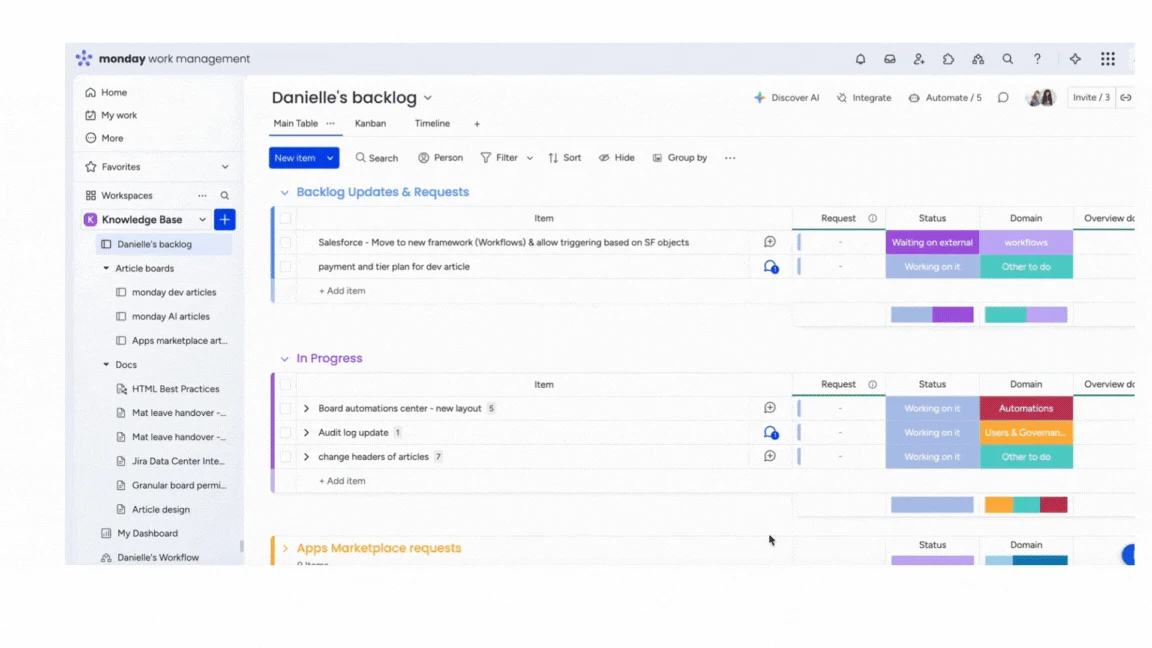
Open Automate in the top-right corner, select the Create tab, and click Create from scratch. Screenshot source Choose a column or event trigger
Click When this happens and pick a trigger from the dropdown, such as a board column (Status, People, or Date, like When a date arrives) or an event (item created or every time period).
Choose carefully because monday work management locks the trigger type once created. Changing triggers later requires duplicating the rule from the Manage tab.
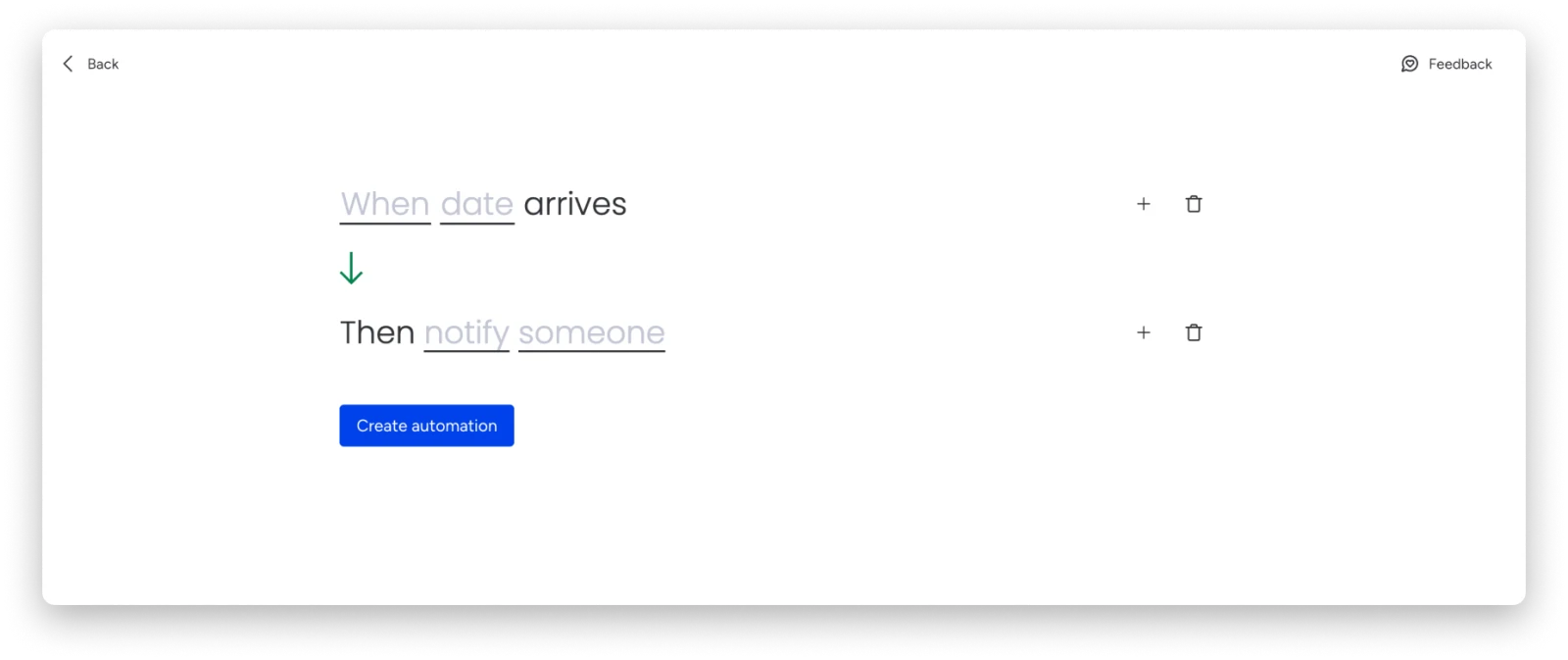
Click When this happens to pick a board column such as Status or Date, or select a scheduled event trigger. Screenshot source Filter the trigger with conditions
Select the condition prompt to qualify your trigger, such as requiring Status to equal Working on it, and click the + sign beside the condition to stack extra conditions.
Chaining conditions prevents noisy alerts on finished tasks when due dates arrive. Keep referenced columns on the board so the rule continues working.
Configure actions and save
Click the grey Then do this field to pick an action like notify someone, then click each underlined prompt (notify for message text and someone for the recipient). Click + beside your action to append multi-step actions, then click Create Automation.
Bundling related actions into one multi-step rule keeps automation logs cleaner than maintaining separate rules.
Rank importance, pause, or delete in Manage
Open the Manage tab at the top of the Board Automation center. Set priority via the importance button below a rule (or its three-dot menu > Importance), toggle a rule off temporarily, or click the three-dot menu > Delete > Delete permanently.
To switch a rule's trigger type, duplicate the rule in Manage, choose the new trigger on the duplicate, verify it runs, and delete the original.
How does this monday work management setup work in practice?
Worked example: Reminding owners when active tasks hit due dates
An operations lead in monday work management alerts owners on deadlines only when tasks remain marked Working on it.
| Choice | Why it matters | How to check |
|---|---|---|
| Choose When a date arrives on Due Date | Evaluates deliverables automatically on their due date. | The trigger clause references Due Date. |
| Require Status to equal Working on it | Skips reminders for Done or On Hold tasks. | The condition filters strictly for Working on it. |
| Set notify someone and high Importance | Alerts the owner and flags the rule in Manage. | The rule shows active in Manage with high importance. |
Task owners receive deadline alerts strictly for unfinished work, and the lead pauses the rule during holidays.
How do you verify your result in monday work management?
Verify your automation by updating a test item so it meets your trigger and conditions, confirming the action fires while enabled in the Manage tab. Next, set Importance rankings on core rules so teammates identify critical workflows.
| Step | What you should see |
|---|---|
| Open Create from scratch in the Automate center | The blank automation builder opens showing the When this happens prompt. |
| Choose a column or event trigger | Your chosen trigger replaces the When this happens placeholder. |
| Filter the trigger with conditions | Qualifying conditions appear linked to your trigger with underlined fields completed. |
| Configure actions and save | Clicking Create Automation saves and activates the rule on your board. |
| Rank importance, pause, or delete in Manage | Your rule appears toggled on in the Manage tab with its importance level. |
Related monday work management guides include How to create and manage board views in monday work management and How to customize Status column labels in monday work management.
Which official monday work management sources were checked?
Every step and limit in this monday work management guide was verified against official documentation on 27 Nov 2026 following how we check figures, alongside more walkthroughs in our monday work management tutorials hub:
How do you troubleshoot common monday work management issues?
Why cannot I edit the trigger on a saved monday work management automation?
Trigger types lock once you click Create Automation, although notification text and recipients stay editable. Duplicate the rule in Manage, set the new trigger on the copy, verify it works, and delete the original.
Why did my active board automation fail to run?
Check the Manage tab to confirm the toggle is on, verify all conditions are met, and ensure connected columns or boards still exist. Missing columns or unmet conditions stop execution.
Why is my Dropdown or Connect Boards column missing from the notify builder?
Dropdown, Mirror, Tags, File, Dependency, and Time Tracking are unsupported in automations. Connect Boards, Auto Number, Progress, and Dependency are also excluded from the notify field.
 Reviewed byDanny Kirk
Founder of ReddiReach.
 Checked byAndrés Felipe
Digital designer and marketer.
Every figure is checked against the vendor's own page. Read our editorial standards.