
Key Takeaways
- Board views display live board data across layouts like Gantt, Workload, Chart, Kanban, or Sidekick-generated visualizations.
- Contributors can add and lock views they create, while pinning views and hiding the main table require board owner or admin rights.
- Create a view via Sidekick or Views Center, refine widgets, lock and pin tabs, hide the main table if needed, and schedule exports.
- Confirm your setup when the view appears on your board's views bar with lock or pin settings applied.
Visualize a board's live items as charts, timelines, workload breakdowns, or Sidekick-built views without duplicating data in monday work management. Teams lock, pin, and schedule PDF exports of board views so leadership and contributors see tailored layouts from one shared board.
For plan limits and team seat pricing behind this workflow, read our monday work management review or connect monday work management to AI agents in monday work management API and MCP.
Key steps
What do you need before starting in monday work management?
monday work management requires the following workspace setup before you begin:
- An active board in monday work management with structured columns (Dates, People, Numbers, or Status).
- Permissions to add views, plus board owner or admin rights to pin views or hide the main table.
- Recipient details and timing if scheduling recurring PDF exports.
How do you complete the steps in monday work management?
Follow these 5 steps in monday work management in order:
Open Sidekick or the Views Center
Click Sidekick at the top of your screen, or click the + icon below your board's title and choose More views for the Views Center (Blank, Table, Gantt, Timeline, Files Gallery, Map, Workload, Chart, Calendar, Form, Kanban, Cards, and Pivot Boards). You can also click + and pick Dashboard for the AI prompt block.
Expand the board header via its right-hand dropdown arrow to see horizontal view tabs, or keep it collapsed for a compact dropdown.
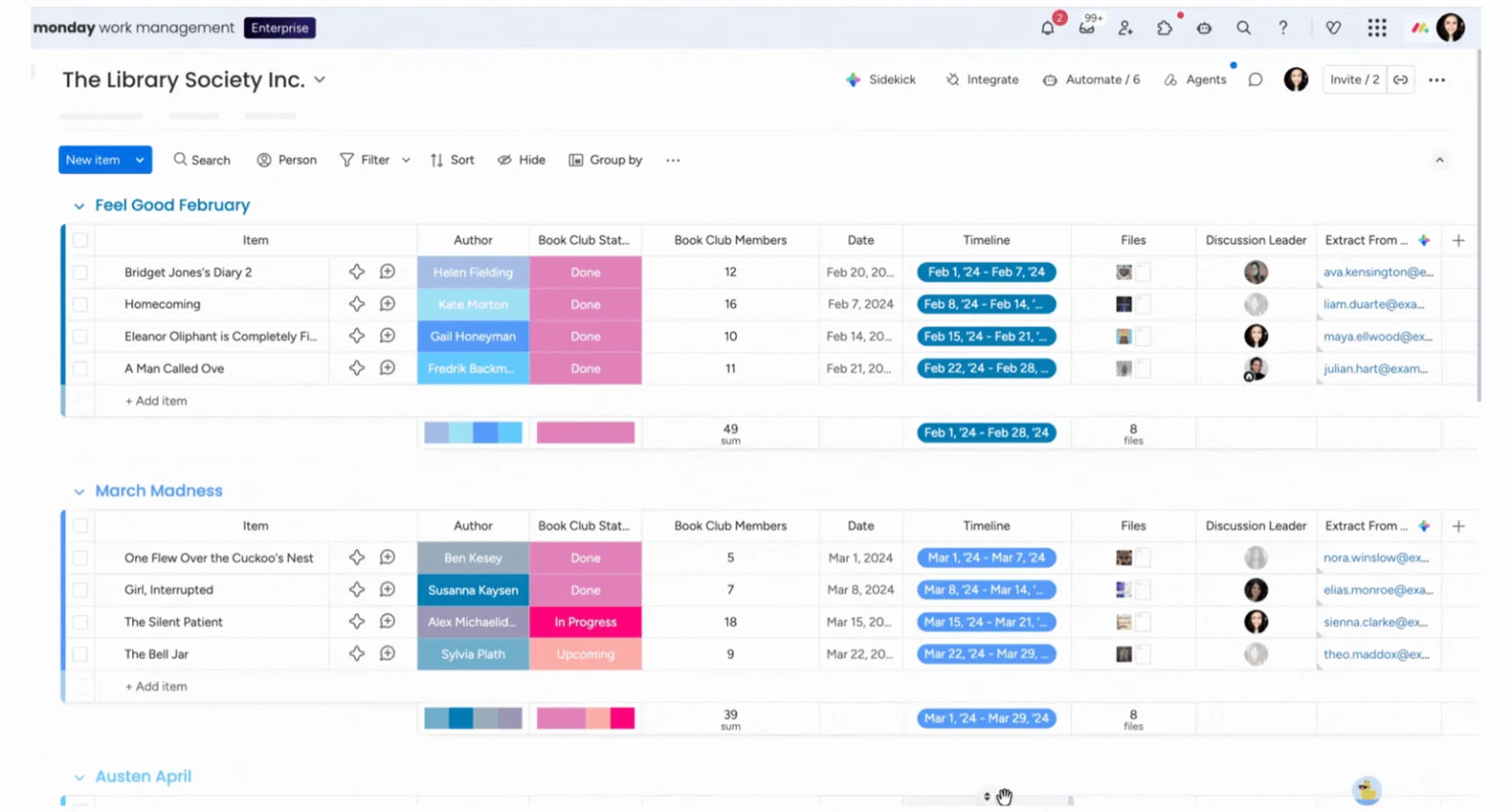
Click the Sidekick button at the top of your screen or use the plus icon under the board title to start a new view. Screenshot source Generate and refine your visualization
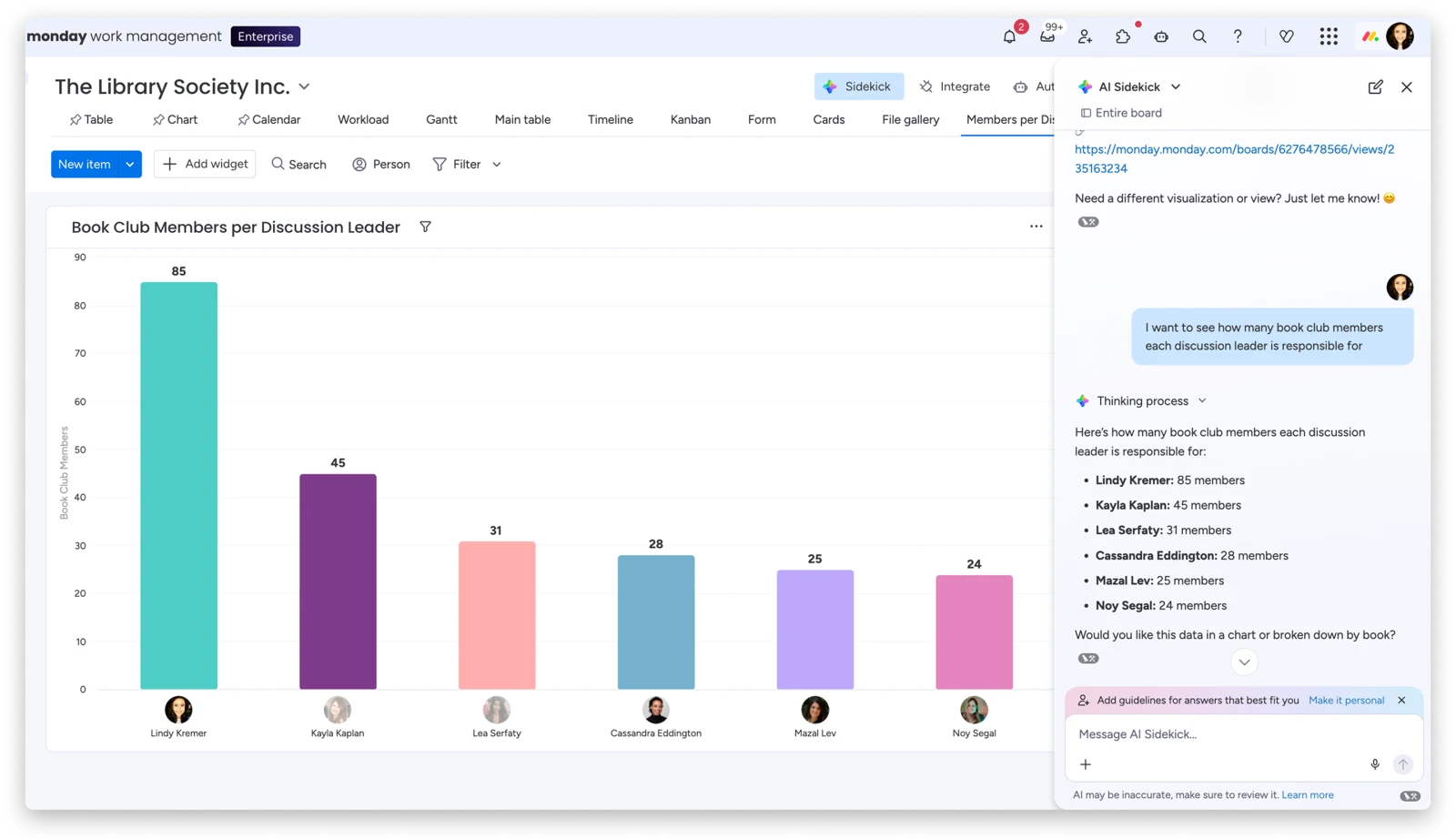
Ask Sidekick a reporting question (such as tracking progress, timelines, or workload), create the suggested board view, and prompt Sidekick to adjust widgets. In a Dashboard AI text block (Table, Gantt, Calendar, Battery, Chart, and Numbers), click Undo at the top to regenerate prompts.
Sidekick's chat preview image may differ slightly in layout from the live board view, where you can add or delete widgets manually.
Ask Sidekick a reporting question about progress, timelines, or workload and select the option to create the board view. Screenshot source Lock and pin views for consistent layouts
Open the three-dot menu beside a view you created, select Lock view, and confirm Lock view to prevent filter changes. Board owners can open the three-dot menu and select Pin view to anchor key tabs first.
Pinned views can be reordered among pinned views while staying fixed for non-owners. Team members can drag and drop unpinned tabs freely.
Hide the main table for curated access
Board owners or account admins can click the three dots beside the main view name and select Hide main table.
Owners and admins still see the main table, while other members land on the first view after it without main-table access. When only one extra view exists, users cannot delete it.
Export widgets or restore deleted views
Click Export in the top-right corner to pick a file format, or choose Schedule PDF export, enter recipients, subject, description, date, and PDF layout, and click Schedule. To restore a deleted view, click your top-right profile image for the board's activity log and click Undo.
Scheduled PDF exports keep external stakeholders updated automatically without risking live board edits.
How does this monday work management setup work in practice?
Worked example: Publishing a locked workload view with PDF delivery
A PMO owner in monday work management sends leadership Friday capacity snapshots while preventing contributors from editing filters.
| Choice | Why it matters | How to check |
|---|---|---|
| Ask Sidekick to build a workload view | Creates an interactive reporting tab from live board data. | The workload tab appears on the views bar. |
| Apply Lock view and Pin view | Protects filters and anchors the tab first. | The tab stays pinned first and blocks filter edits. |
| Configure Export > Schedule PDF export | Emails Friday PDF snapshots to department leads. | Clicking Schedule confirms recipients and cadence. |
Leadership receives Friday PDF reports automatically while contributors work inside locked views.
How do you verify your result in monday work management?
Verify your setup by switching across view tabs, confirming non-owners cannot alter your locked view, and running a test export. Restore any removed view from the top-right profile activity log with Undo.
| Step | What you should see |
|---|---|
| Open Sidekick or the Views Center | Either Sidekick or the Views Center catalog opens above your board. |
| Generate and refine your visualization | The new view appears on your board's views bar rendering live items. |
| Lock and pin views for consistent layouts | Locked views block edits from others and pinned tabs stay anchored first. |
| Hide the main table for curated access | Standard members open directly into the curated view without seeing Main Table. |
| Export widgets or restore deleted views | Exports schedule cleanly and deleted views restore via Undo in the activity log. |
Related monday work management guides include How to build custom board automations in monday work management and How to customize Status column labels in monday work management.
Which official monday work management sources were checked?
Every step and limit in this monday work management guide was verified against official documentation on 27 Nov 2026 following how we check figures, alongside more walkthroughs in our monday work management tutorials hub:
How do you troubleshoot common monday work management issues?
Why does the Sidekick preview image differ slightly from my created view?
Sidekick shows a quick chat preview image first. Creating the board view builds live interactive widgets with the same core metrics, which you can refine further.
Why cannot a user delete the only secondary view on a board?
When Hide main table is enabled with only one additional view, monday work management blocks deleting it. That keeps board items accessible to non-admin members.
How can I reinstate a board view after someone deletes it?
Click your profile image in the top-right corner of the board to open its activity log. Locate the deleted view and click Undo beside it.
 Reviewed byDanny Kirk
Founder of ReddiReach.
 Checked byAndrés Felipe
Digital designer and marketer.
Every figure is checked against the vendor's own page. Read our editorial standards.