
Key Takeaways
- The Status column supports up to 40 color labels per board with hover descriptions, done-color mapping, and a column summary.
- You need column edit access on a board in monday work management, plus account admin rights for account-wide default labels.
- Add the Status column, edit label names and descriptions, deactivate retired labels, set done colors, and show the column summary.
- Confirm your setup when cells display custom labels with info icons and the bottom summary bar tracks done progress.
Configure color-coded Status column labels, hover descriptions, done states, and progress summaries to match how your team delivers work in monday work management. Clear status definitions standardize task handoffs on boards and keep completion metrics accurate across groups.
For plan limits and team seat pricing behind this workflow, read our monday work management review or connect monday work management to AI agents in monday work management API and MCP.
Key steps
What do you need before starting in monday work management?
monday work management requires the following workspace setup before you begin:
- An active board in monday work management with permission to add and edit columns.
- A list of workflow stages (up to 40 labels) and agreement on which colors count as done.
- Account administrator access if configuring default Status labels across new boards.
How do you complete the steps in monday work management?
Follow these 5 steps in monday work management in order:
Add a Status column to your board
Click the + sign at the far right of your board's column row and select Status from the dropdown menu. If long labels get cut off, click the right edge of the Status column near its title and drag right to widen it.
Placing your primary Status column near the item name keeps progress readable without horizontal scrolling.
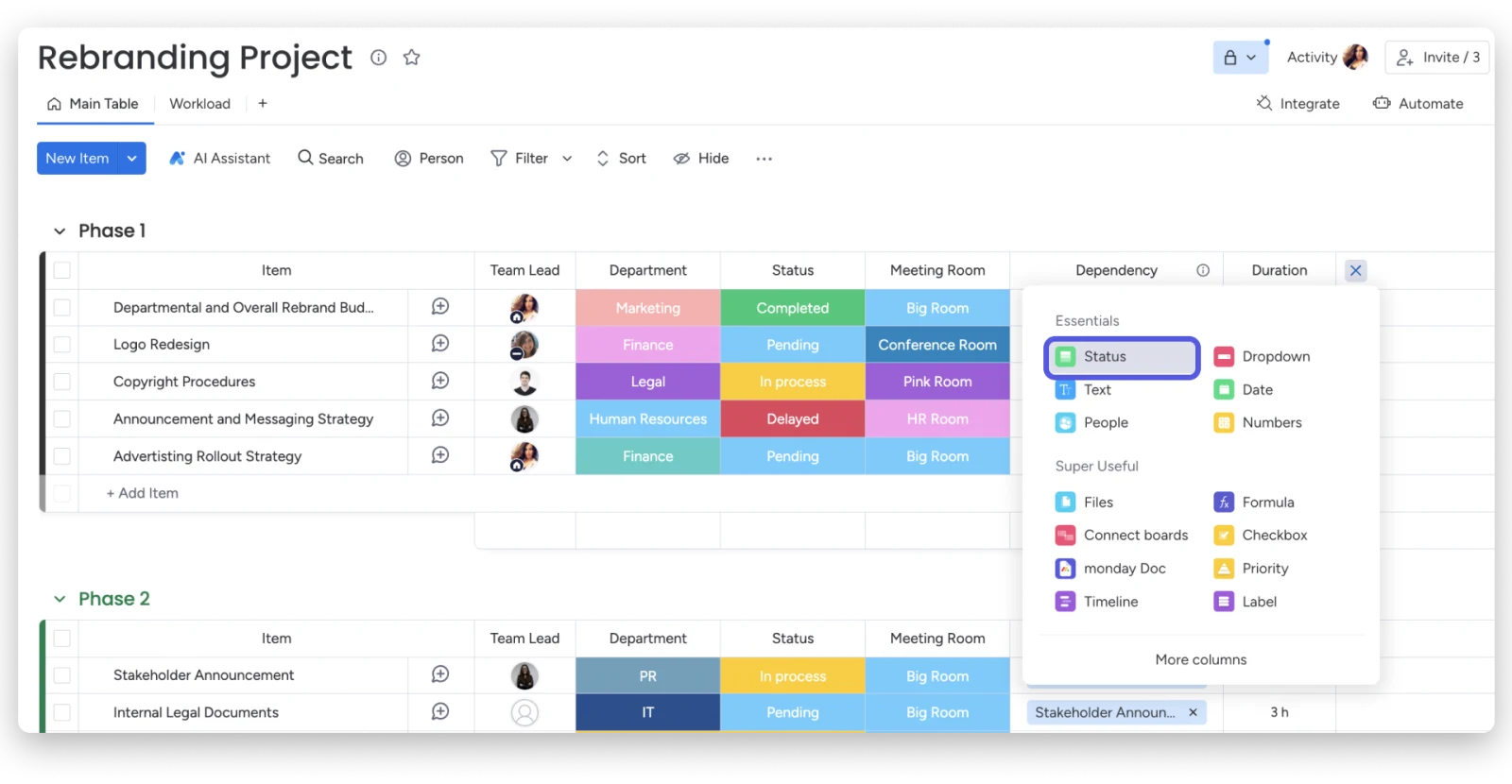
Click the plus sign at the far right of your board columns and select Status from the dropdown menu. Screenshot source Edit label names, colors, and descriptions
Click any Status cell and click Edit Labels at the bottom. Rename and reorder stages, choose from up to 40 colors, click the three dots beside a label to select Add label description, and click Apply.
Descriptions add an i icon next to the label so teammates can hover to check stage criteria before updating an item.
Deactivate retired labels safely
Open Edit Labels, click the three dots to the right of a legacy label already used on board items, select Deactivate, and click Apply.
Used labels cannot be deleted. Deactivating hides retired options from new choices while preserving historical item statuses.
Set done colors and show the column summary
Click the three dots at the top right of the Status column for Settings, click Customize Status column, and pick colors associated with done items. Reopen Settings, choose Show column summary, and click the summary cell to show either done progress or all Status labels.
Mapping every terminal completion color keeps progress bars accurate without counting blocked states.
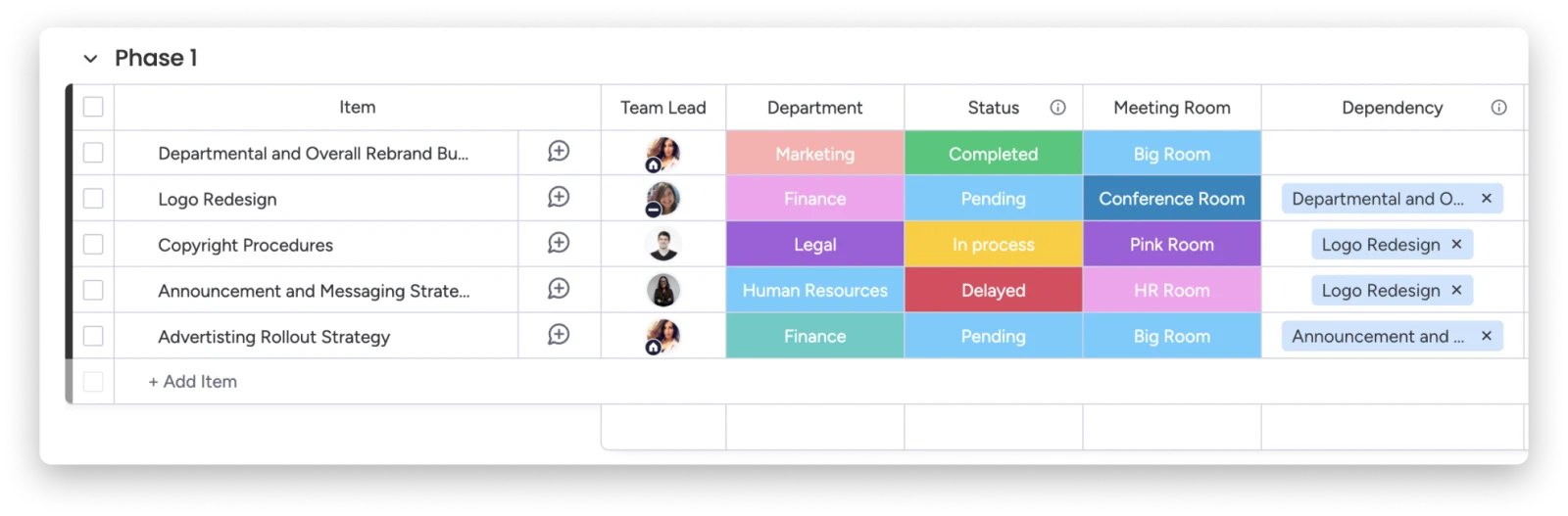
Inspect your color-coded Status column cells and column width so every custom workflow stage reads clearly. Screenshot source Post inline notes or set account defaults
Click the + sign in the top-right corner of any Status box to comment on a status shift, which also posts in the item's Updates section. Admins can set account-wide defaults from their top-right profile avatar under Administration > Customization > Boards.
Inline status comments tie context directly to stage changes, and default account labels (over 40 colors) align new boards automatically.
How does this monday work management setup work in practice?
Worked example: Standardizing editorial stages on a content board
A content lead in monday work management aligns writers and legal reviewers on six article stages while preserving archived items.
| Choice | Why it matters | How to check |
|---|---|---|
| Set six stages in Edit Labels with Add label description | Defines rules for Drafting, Review, Legal Check, Scheduled, Published, and Cancelled. | Hovering over the i icon on Legal Check shows sign-off rules. |
| Select Deactivate on legacy Needs Copy | Hides the old stage without altering archived rows. | Needs Copy is hidden from new choices while past items stay intact. |
| Mark Published and Cancelled as done with Show column summary | Counts finished and closed pitches accurately in group bars. | Each monthly group displays an accurate completion summary bar. |
Writers update stages using hover tooltips, log notes via the cell plus icon, and review monthly progress in one glance.
How do you verify your result in monday work management?
Verify your setup by opening a Status cell to check label order and tooltips, then setting a test item to your done color to watch the column summary update. Next, connect your Status labels to board automations for automatic handoff alerts.
| Step | What you should see |
|---|---|
| Add a Status column to your board | A Status column appears on your board with default color cells. |
| Edit label names, colors, and descriptions | Clicking a Status cell shows your custom color labels with an i icon on documented stages. |
| Deactivate retired labels safely | Deactivated labels disappear from active options while older items keep their badge. |
| Set done colors and show the column summary | A color summary bar appears under each group reflecting your done colors. |
| Post inline notes or set account defaults | Notes posted via a cell's plus sign appear inside the item's Updates feed. |
Related monday work management guides include How to build custom board automations in monday work management and How to create and manage board views in monday work management.
Which official monday work management sources were checked?
Every step and limit in this monday work management guide was verified against official documentation on 27 Nov 2026 following how we check figures, alongside more walkthroughs in our monday work management tutorials hub:
How do you troubleshoot common monday work management issues?
Why cannot I delete an unused label from my Status column?
Labels assigned to board items cannot be deleted. Open Edit Labels, click the three dots beside the label, select Deactivate, and click Apply.
How do I stop long Status label names from getting cut off?
Narrow columns clip longer text visually. Click the right edge of the Status column near its title and drag right to widen it.
Why does my custom green color not count as done on the board?
Custom colors must be mapped to done in column settings. Click the three dots on the Status column, open Settings > Customize Status column, and select your completion colors.
 Reviewed byDanny Kirk
Founder of ReddiReach.
 Checked byAndrés Felipe
Digital designer and marketer.
Every figure is checked against the vendor's own page. Read our editorial standards.