
Key Takeaways
- Add a Relation property within Notion to associate records between two distinct databases such as Projects and Tasks.
- Verify you possess full edit permissions for both Notion databases before attempting to configure or link cross-database properties.
- Follow five sequential steps to choose databases, configure directional visibility, create the relation property, and link records.
- Confirm the relation cell opens the target Notion page and verifies bidirectional record visibility across both database views.
Connect separate Notion databases using a relation property to cross-reference entries across projects and tasks. Configuring an optional two-way relation ensures linked records automatically display and update across both workspaces.
For plan limits and team seat pricing behind this workflow, read our Notion review or connect Notion to AI agents in Notion API and MCP.
Key steps
What do you need before starting in Notion?
Notion requires the following workspace setup before you begin:
- Two Notion databases with pages to connect, such as Projects and Tasks.
- Permission to edit both databases.
How do you complete the steps in Notion?
Follow these 5 steps in Notion in order:
Choose the database that will hold the relation
Open the database where you want to make the connection, such as Tasks. Add a new database property and name it Project. The relation will let each task point to its project page.
If each task belongs to only one project, plan to limit the relation to one page. If a task may belong to several projects, keep the relation open to multiple pages.
Choose the relation direction based on the work people do most often. A Project property on Tasks makes it convenient to assign a task while editing that task. A reciprocal Tasks property on Projects helps review the work from a project page. Decide whether both paths are useful before creating the property.
Set the property type to Relation
Open the new property’s type menu and choose Relation. In the database picker, search for and select the other database, such as Projects.
Notion displays a preview of the connection before creating it. Check that the source and destination databases are the ones you intended.
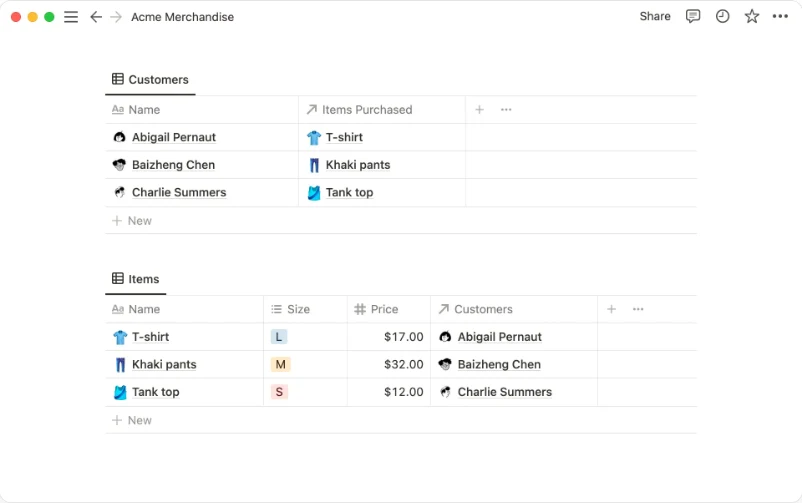
Confirm that the relation connects the two intended databases. Screenshot source Choose whether the relation appears both ways
In the relation setup, turn on Show on [related database] if you also want a corresponding property in the other database. Name that property, for example Tasks, so opening a project can show its linked tasks.
Leave the option off for a one-way relation if you only need to choose the project from each task. A two-way relation keeps edits reflected in each database.
A two-way relation improves navigation, but it adds a corresponding property to the related database. Use it when people need to inspect or update connections from either side. Keep it one-way when the project page does not need a task list. Check the preview's database names and property name before finalizing.
Create the relation
Select the blue Add relation button to finalize the property. The new relation column appears in the database. If you chose a two-way relation, the corresponding property appears in the related database as well.
If each record should only connect to one page, open the relation property options and set the limit to 1 page. Otherwise, use No limit.
Link a sample page
In a row of the source database, click the cell under Project. Search for a project page and select it. For example, link the task Write launch email to the project Spring launch.
With a two-way relation, open Spring launch in the Projects database and check its Tasks property. The task should appear there as well.
Test the relation limit with realistic records before linking a batch. If a task should have one project, link it to a project and then try to identify whether the property permits another page. If the task can span projects, confirm that multiple links are useful to the people maintaining it. The limit should reflect the data rule, not just today's sample.
How does this Notion setup work in practice?
Worked example: linking tasks to a launch project from both databases
A project coordinator wants to assign each task to a single parent project and review the associated task backlog directly from a project dashboard. The setup uses existing Projects and Tasks databases configured with full edit permissions.
| Choice | Why it matters | How to check |
|---|---|---|
| Add Project to Tasks as a Relation | People assigning work can select its project in the task record they are already editing. | The relation preview names Tasks and Projects. |
| Enable the corresponding property on Projects, named Tasks | The coordinator also needs to review related work from the project page. | The preview shows the reciprocal property before creation. |
| Set the relation to one page if each task belongs to one project | This encodes the team's stated assignment rule and avoids ambiguous ownership. | The relation property shows the intended limit. |
| Link Write launch email to Spring launch | A concrete record tests whether selection works across the two databases. | The task shows the project, and the project's Tasks property shows the task. |
If both records show the same connection, continue linking tasks under the one-project rule. If the team discovers legitimate multi-project tasks, revisit the limit before bulk entry so the property matches actual work.
How do you verify your result in Notion?
Confirm that the relation cell opens the selected database page and that the linked record appears on the other side if you enabled a two-way relation. Continue linking your existing pages to make related work easier to navigate.
| Step | What you should see |
|---|---|
| Choose the database that will hold the relation | The chosen database has a new property named Project. |
| Set the property type to Relation | A relation preview names the two intended databases. |
| Choose whether the relation appears both ways | The setup preview shows either one relation property or the two named properties you intended. |
| Create the relation | The relation property is visible in the database with the selected relation limit. |
| Link a sample page | The source row shows the selected project. If enabled, the project page shows the linked task in its corresponding relation property. |
Related Notion guides include How to create a linked database view in Notion and How to create a Notion database with a board view.
Which official Notion sources were checked?
Every step and limit in this Notion guide was verified against official documentation on 21 Nov 2026 following how we check figures, alongside more walkthroughs in our Notion tutorials hub:
How do you troubleshoot common Notion issues?
Why can’t I find the database I want to connect?
Confirm that the intended database exists in the workspace and that you selected Relation as the property type. Search for the database by its current name in the relation picker.
Can I change or remove a linked page?
Yes. Open the relation cell to select another page. To remove a related page, hover over it and select the – control.
A task appears linked to the wrong project. How can I correct it?
Open that task's relation cell, select the intended project, and verify the linked project name. If the reciprocal property is enabled, open the intended project and confirm the task appears there. Inspect the previously linked project as well if you need to confirm the old connection was removed.
 Reviewed byDanny Kirk
Founder of ReddiReach.
 Checked byAndrés Felipe
Digital designer and marketer.
Every figure is checked against the vendor's own page. Read our editorial standards.