
Key Takeaways
- Notion recurring database templates automatically generate new database pages on a Daily, Weekly, Monthly, or Yearly schedule using your predefined body blocks and property values.
- Database templates belong strictly to the Notion database where you build them, requiring edit permissions on that specific database before configuring any Repeat schedule.
- Prefilled relation properties copy onto every generated Notion page, and templates set to Daily recurrence cannot include nested database templates above zero levels.
- Verify your Notion recurrence setup in the template's three-dot Repeat menu by confirming the interval count, start date, trigger time, and blank relation fields.
Schedule a recurring database template in Notion by opening the database template menu, selecting Repeat on your target template, and setting a daily, weekly, monthly, or yearly cadence. Each scheduled run automatically generates a fresh page populated with your template's starting properties and body content.
For plan limits and team seat pricing behind this workflow, read our Notion review or connect Notion to AI agents in Notion API and MCP.
Key steps
What do you need before starting in Notion?
Notion requires the following workspace setup before you begin:
- Edit access to the specific Notion database where you want recurring pages generated.
- Defined starting page blocks and property values that every newly created database entry should inherit.
- Your target recurrence cadence (Daily, Weekly, Monthly, or Yearly), multi-unit interval count where offered, start date, and trigger time.
How do you complete the steps in Notion?
Follow these 5 steps in Notion in order:
Open the database template menu
Navigate to the Notion database where your recurring entries need to appear. Because Notion scopes every template strictly to the database where it was built, make sure you are viewing the primary source database or a linked view pointing directly to that target collection. At the top right of the database header, click the dropdown arrow right beside the blue New button; if you are working in a narrow split-screen window or compact layout, click the dropdown next to the plus sign instead.
Create or prepare the template
If you have not built the base layout yet, select + New template to open the template editor, or click the ••• icon beside an existing entry to refine it before scheduling. Give the template a clear title and populate the page body and default properties (such as tags, status, or owner) that every generated copy should start with. Keep in mind that if you plan to embed nested database templates inside this layout, Notion supports up to three nesting levels on Weekly, Monthly, and Yearly schedules, whereas Daily repeating templates cannot contain nested templates.
Open the template's recurrence settings
Reopen the dropdown next to New (or the plus sign) at the top of the database and locate the exact template you want Notion to generate automatically. Hover over or find that template row and click its ••• menu icon on the right side without clicking the template name itself, since clicking the name creates an immediate manual page instead of opening settings. Inside the template options popover, click the dropdown next to Repeat to view the scheduling options.
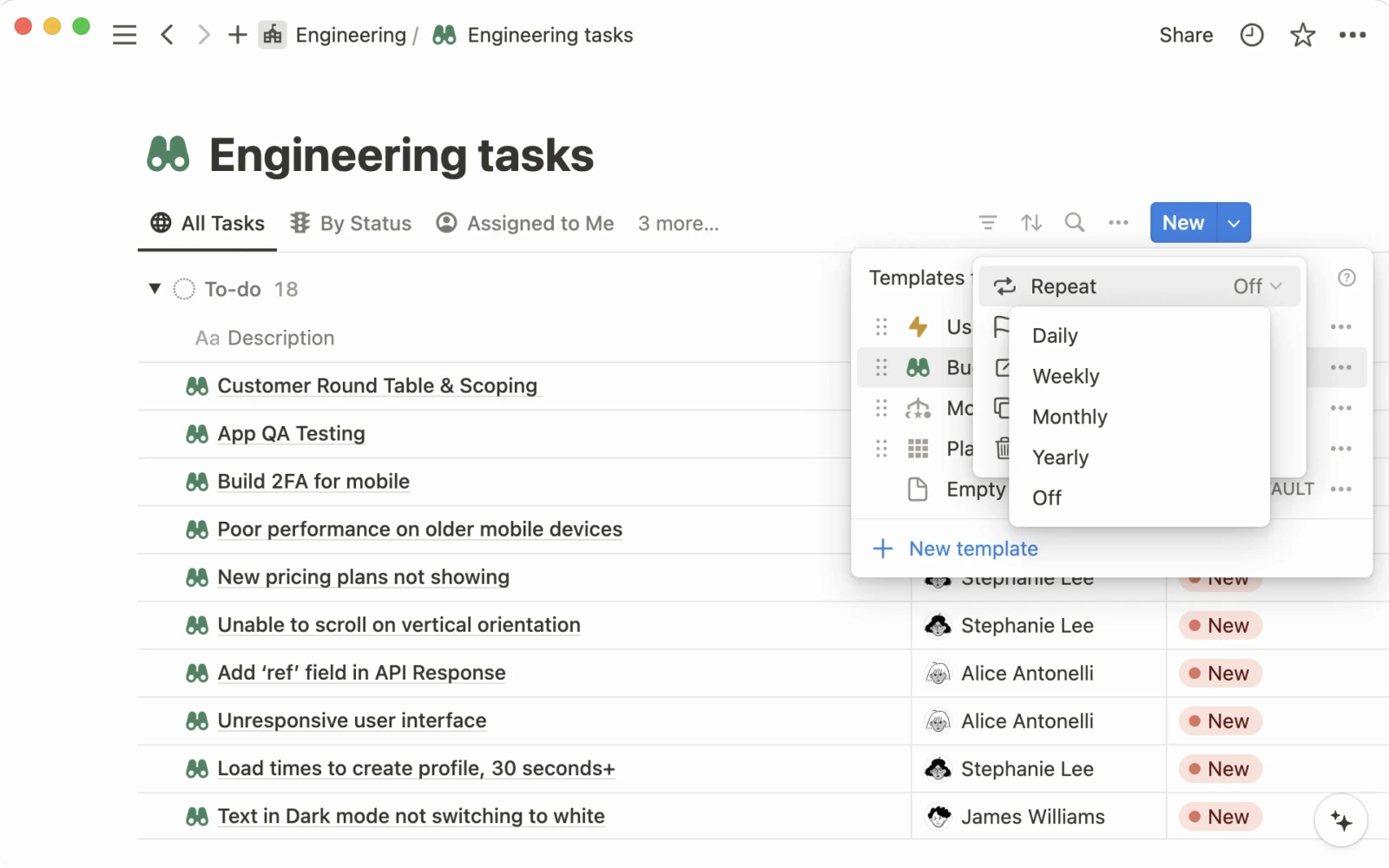
The screenshot shows the template’s recurrence menu and the available frequency choices. Screenshot source Choose the recurrence interval
From the Repeat dropdown, select Daily, Weekly, Monthly, or Yearly to match your workflow cadence. When you choose Weekly, Monthly, or Yearly, set the interval count to define how many weeks, months, or years should pass between each generated copy (for example, every two weeks for biweekly sprints). Next, select the exact start date for the cycle to begin and enter the specific time of day when Notion should create the new page in the database.
Review the repeating template
Inspect both the active Repeat summary and the template's property values to prevent unwanted duplicate links across future runs. Pay special attention to any relation property inside the template: if a relation field has a linked page selected, Notion copies that exact link onto every recurring page it creates. Leave relation properties blank unless every generated entry truly belongs to the same parent project or record, while keeping static defaults that team members can adjust on individual pages after creation.
How does this Notion setup work in practice?
Example: scheduling a biweekly sprint planning page in a product team database
A product operations lead wants Notion to generate a fresh sprint planning agenda every two weeks inside the team's central Meetings database starting next Monday morning.
| Choice | Why it matters | How to check |
|---|---|---|
| Open the Meetings database New dropdown and edit the Sprint Planning template. | Templates only appear and run inside the specific Notion database that owns them. | The Sprint Planning template appears in the Meetings database template list with standard agenda headings. |
| Open the template's ••• menu, click Repeat, choose Weekly, and set the interval to 2 weeks. | Weekly recurrence allows specifying how many weeks pass between generated copies to match a two-week sprint cycle. | The Repeat configuration shows a 2-week Weekly cadence with Monday's start date and morning creation time. |
| Clear the Sprint Backlog relation property inside the template before saving. | Any prefilled relation copies onto every future meeting page instead of letting the team link the current sprint. | The relation property in the template is empty while static meeting type tags remain set. |
Notion queues the Sprint Planning template to create a clean entry on the two-week schedule, allowing the product lead to link each new page to that cycle's active sprint record once generated.
How do you verify your result in Notion?
Your Notion database template is now scheduled to generate new entries automatically at the specified date, time, and interval. Every generated page inherits the template's starting blocks and property values, which collaborators can edit independently without altering the underlying template.
| Step | What you should see |
|---|---|
| Open the database template menu | The dropdown menu opens and lists existing templates belonging specifically to this Notion database, alongside the + New template action. |
| Create or prepare the template | Your template appears in the database's New dropdown menu with its intended title, starting blocks, and baseline property defaults saved. |
| Open the template's recurrence settings | The Repeat configuration menu is open for your chosen template rather than creating a one-off database entry. |
| Choose the recurrence interval | The Repeat panel displays your chosen Daily, Weekly, Monthly, or Yearly interval, multi-period count if applicable, start date, and scheduled creation time. |
| Review the repeating template | The template shows the active Repeat badge in the database menu, and its relation properties are empty unless universal linking is intentional. |
Related Notion guides include How to create a linked database view in Notion and How to create a Notion database with a board view.
Which official Notion sources were checked?
Every step and limit in this Notion guide was verified against official documentation on 21 Nov 2026 following how we check figures, alongside more walkthroughs in our Notion tutorials hub:
How do you troubleshoot common Notion issues?
Why can't I find the template I want to repeat?
Database templates exist only inside the specific Notion database where they were created. Open the exact database that owns the template, then check the dropdown arrow next to New (or next to the plus sign on smaller screens).
Why does every recurring Notion page link to the same related record?
When you fill in a relation property inside a database template, Notion copies that exact relation value into every generated page. Edit the template and clear the relation field unless every scheduled copy should point to those exact same pages.
Why can't I nest another template inside a daily repeating template?
Notion restricts templates set to Daily recurrence from containing nested templates. If your workflow requires nested database templates, switch the schedule to Weekly, Monthly, or Yearly, where Notion supports up to three nesting levels per database template.
 Reviewed byDanny Kirk
Founder of ReddiReach.
 Checked byAndrés Felipe
Digital designer and marketer.
Every figure is checked against the vendor's own page. Read our editorial standards.